AI assistants
Connect Claude, ChatGPT, Cursor or another AI assistant to Taktoria's apps through MCP. It works as you, in one workspace, with your seats and permissions.
What connecting does
Each Taktoria app has an MCP server: an address an AI assistant can be given so it can work in that app for you. Connected, it can search the app and, as more tools arrive, read and change what is in it.
- It acts as you. It sees only what you can see in the app and changes only what you could change yourself, and it needs your seat on the app.
- It works in one workspace, the one you choose when you connect it. To use it in another, connect it again and choose that one.
- You choose, app by app, whether it may only read or also make changes.
- Every change it makes is in the workspace's audit log, under your name, with the assistant named beside it.
Your workspace's admins can turn MCP connections off; see MCP connections under Workspace administration.
Server addresses
One address per app:
| App | MCP server |
|---|---|
| LaunchCal | https://www.taktoria.com/mcp/launchcal |
| OKR Hub | https://www.taktoria.com/mcp/okrhub |
| Dory | https://www.taktoria.com/mcp/dory |
| Go Links | https://www.taktoria.com/mcp/golinks |
| Memegen | https://www.taktoria.com/mcp/memegen |
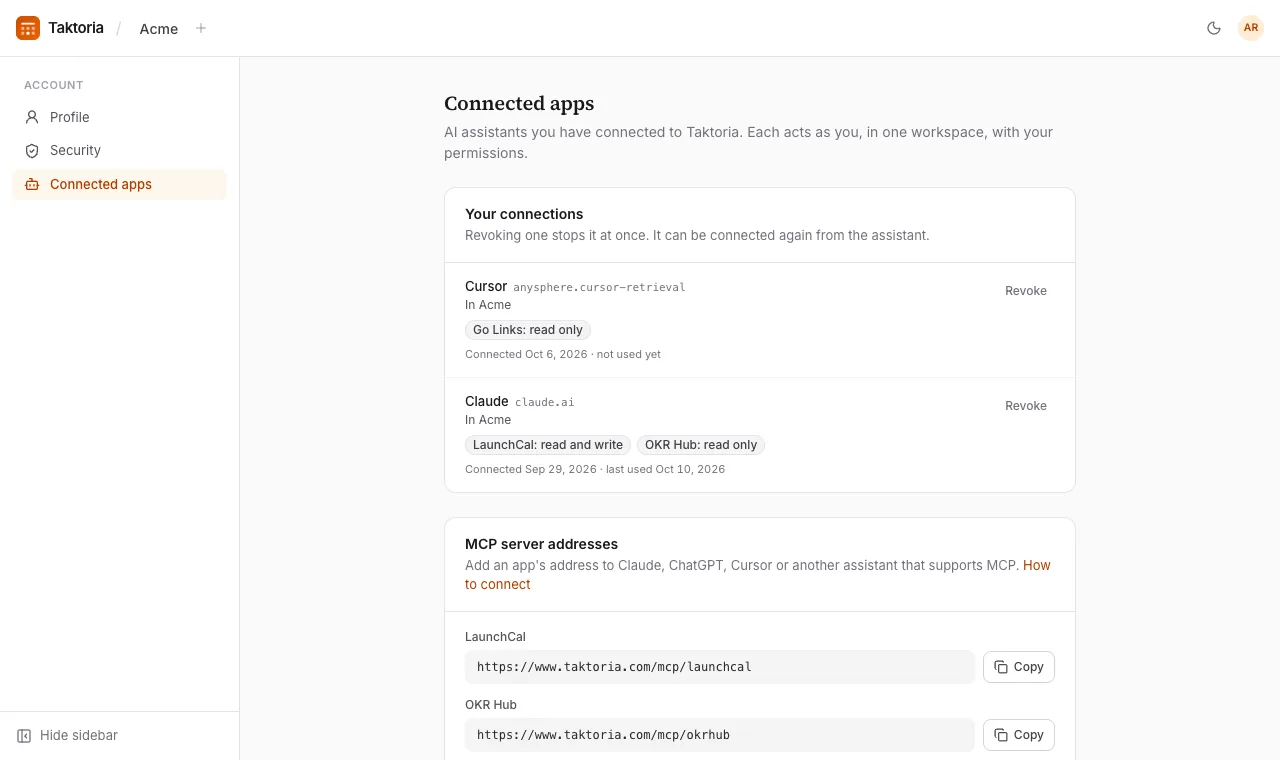
They are also listed, with a button to copy each, under Account → Connected apps. They work on Taktoria's own address only, not on an app domain your workspace has set up.
Claude
In Claude (on the web or the desktop app), open its settings, go to its connectors and add a custom connector. Give it a name, such as Taktoria LaunchCal, and paste the app's server address. Then connect it: Claude opens Taktoria in your browser, where you sign in if you need to and choose what it may do (see Allowing access below). Add one connector for each app you want it to use.
On a Claude Team or Enterprise plan, an owner of your Claude organization may need to add the connector first.
ChatGPT
In ChatGPT, open its settings and add a custom connector (on some plans, its developer mode has to be turned on first, or a workspace admin has to allow it). Paste the app's server address, choose OAuth as the way it signs in, and create it. ChatGPT then opens Taktoria for you to sign in and choose what it may do.
Cursor
Add each server to Cursor's MCP settings, in ~/.cursor/mcp.json for every project or .cursor/mcp.json in one:
{
  "mcpServers": {
    "taktoria-launchcal": { "url": "https://www.taktoria.com/mcp/launchcal" }
  }
}
Cursor shows the server as needing sign-in: select it, and Cursor opens Taktoria in your browser to sign in and choose what it may do.
Claude Code
Add a server from your terminal, one per app:
claude mcp add --transport http taktoria-launchcal https://www.taktoria.com/mcp/launchcal
Then, in Claude Code, run /mcp, choose the server and authenticate: your browser opens Taktoria to sign in and choose what it may do.
Allowing access
When an assistant connects, Taktoria asks whether to let it, showing the name the assistant gave itself and the address it will send you back to. Go on only if you started connecting it just now.
- Under Workspace, choose the workspace it may work in. A workspace that does not allow MCP connections cannot be chosen; one that requires Google asks you to Sign in with Google first.
- Under What it may do, choose No access, Read only or Read and write for each app it asked for. You can give it less than it asked for, never more. An app your workspace does not subscribe to, or that you hold no seat on, cannot be chosen.
- Select Allow, or Deny to send it away with nothing.
Connecting the same assistant to the same workspace again replaces what it may do. It stays connected until you revoke it, or something below stops it.
Your connections
Account → Connected apps lists every assistant you have connected, in every workspace you are in: what it may do in each app, when you connected it and when it was last used. Revoke stops it at once; it can be connected again from the assistant.
When it stops working
An assistant is checked on every request, so it stops at once, and the assistant asks you to connect again or says why, when:
- you revoke it, or a workspace admin does;
- you leave the workspace, or are removed from it;
- an admin turns off Allow MCP connections;
- the workspace starts requiring Google, and you connected it without signing in with Google: connect it again, signing in with Google;
- you no longer have a seat on the app, or the workspace's subscription to it has ended. These come back by themselves once the seat or subscription does.