Go Links
Short links your whole company can guess: go/roadmap instead of a forty-character URL.
Using a go link
Every link in your workspace answers at your Taktoria address followed by /go/ and its short name, for example https://taktoria.com/go/roadmap. There you need to be signed in as a member to follow one, whatever the link says: only your session says which workspace the link belongs to. If you are not signed in, you are asked to sign in first and then taken on to the link.
If your workspace has set up its own hostname, such as go.acme.com, links also answer there without the /go: go.acme.com/roadmap. Who can follow each one there is the link's own choice, under Who can follow it: by default, members and anybody at a domain on the workspace's list in Settings → Domains, who proves an address and makes no account. See below.
Following a short name that does not exist yet opens Go Links with the name filled in, ready for you to claim it.
A link saved as a draft does not go anywhere yet, on either address. Following it opens Go Links with a note saying it is a draft and who created it, and counts no click. Only the people who can change the link see where it will point, with a Publish button beside it.
Somebody who is not a member, let in on the hostname by proving an address, never sees Go Links itself: a link that does not exist, a draft, and a link not open to their address all just tell them there is no such link. Before they have proved an address, a link that is not open to anyone looks exactly like one that does not exist, so nobody can find out which links there are by guessing names.
Creating a link
- Open Go Links and select New link.
- Enter the Short name. Lowercase letters, numbers and hyphens; nested names like
team/roadmapwork. Spaces become hyphens, soQ3 Roadmapbecomesq3-roadmap. - Enter the Destination. It has to be an http or https address; a bare hostname is assumed to be https.
- Optionally, say What it is for.
- Save.
Under Who can follow it, choose who may follow the link on your workspace's own hostname: see Your own hostname, below. Left as it is, it is people at every domain on the workspace's list.
To claim a short name before its destination is ready, select Save as draft instead. A draft holds the name, so nobody else can take it, but it does not send anybody anywhere until it is published.
Short names are unique within the workspace. A few names are reserved because they would collide with the app itself, such as api, app, settings and new.
Finding and sharing links
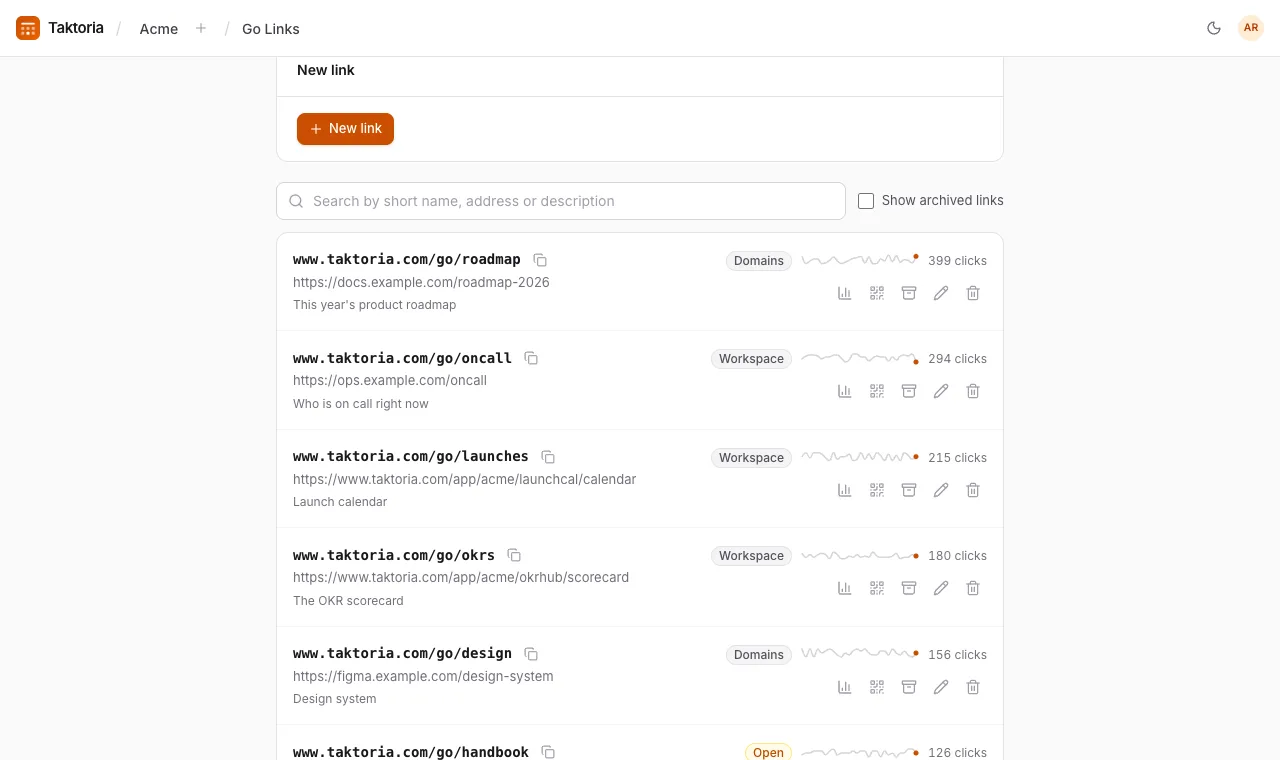
Links are listed by how often they are used, most clicked first. Each shows its short address, its destination and description, and its clicks over the last 30 days. A badge says who can follow it on your hostname: Open for anyone, Workspace for members, Domains for people at certain email domains. The Clicks card at the top charts the whole workspace over the last 30 days.
Type in Search links to narrow the list by short name, address or description.
- Select the copy button to copy a link.
- Clicks over time shows one link's daily chart.
- QR code shows a code for the short link, with Download to print. It holds the short link rather than the destination, so changing where the link points does not break printed codes.
Editing, archiving and deleting
- Edit changes a link's short name, destination, description, Who can change this link and Who can follow it. Renaming a link means the old name stops working.
- Archive hides a link from the list. It keeps working, and Bring back restores it. Tick Show archived links to see archived ones.
- Delete asks first, then removes a link for good: it stops working for everyone. Archive it instead if you might want it back.
- Publish puts a draft live, so following it goes to its destination. Drafts are marked Draft in the list; people who cannot change a draft do not see its destination.
Who can change a link
By default, anybody with a Go Links seat can change any link. Name people under Who can change this link to restrict it: then only they, the person who created it and admins can. A lock icon marks a restricted link. Whoever can change a link also chooses Who can follow it. Everyone with a seat can follow every link.
Your own hostname
An admin can give Go Links its own hostname, such as go.acme.com, in Settings → App domains, by adding the DNS record it shows at your domain's DNS provider. The certificate is issued automatically. Links on that hostname need no /go, which also makes it the one to put on posters and slides.
Each link chooses who can follow it there, under Who can follow it when you create or edit it:
- People at certain email domains, the default for every link, existing ones included. Somebody following the link proves an address at one of the domains, with Continue with Google or Email me a code, and goes straight on to it. No account is made for them, and the proof lasts 30 days in that browser, for every link whose domains it matches. Tick the Email domains to let in, from the workspace's list in Settings → Domains: your verified domains that are Allowed for go links and events, and partner domains. They start all ticked, so the link takes the whole list, including domains added later; untick some to choose. A domain taken off the list stops letting its people in at once, on every link; one a link ticked stays ticked, and counts again if it is put back. With nothing on the list, only members can follow the link. Require Google sign-in, offered where Google sign-in is set up, takes Google's word only, never an emailed code. A workspace that requires its members to sign in with Google does the same for every link, and the box then gives way to a note saying so.
- Members of this workspace: members only, signed in. Anybody already signed in to Taktoria goes straight through without being asked.
- Anyone with the link: nothing is asked, and the form warns you so. Choose it only for a link whose destination anybody may reach.
Members always get through. On Taktoria's own address, /go/ links always need a member signed in, whatever the link says.