Getting started
Create a workspace or join one, sign in the way your company prefers, and find your way to the apps you have a seat on.
Workspaces, apps and seats
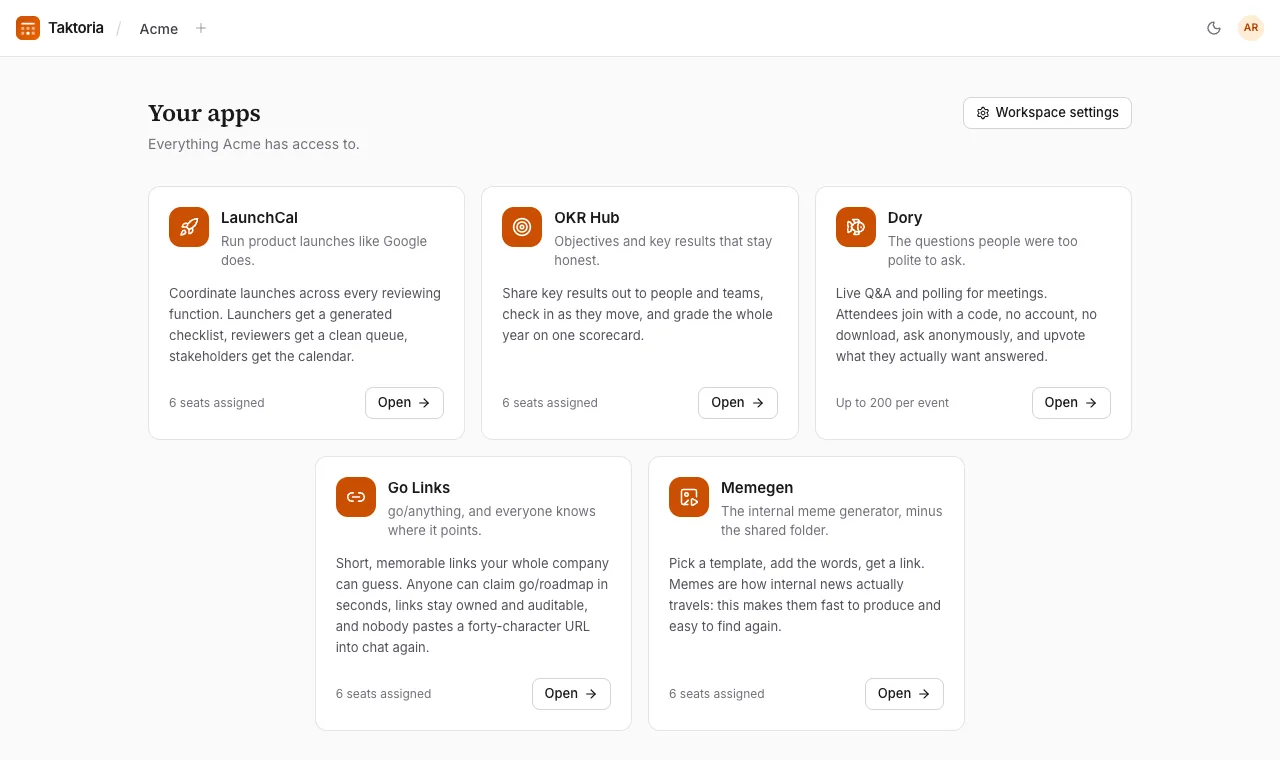
Taktoria is five workplace apps on one platform: LaunchCal for product launches, OKR Hub for objectives and key results, Dory for meeting Q&A and polls, Go Links for short internal links, and Memegen for internal memes.
Everything lives in a workspace: your company or team, with one member list and one bill. To open an app you need to be a member of the workspace and hold a seat on that app; an admin assigns seats. Dory works the same way: its seat is what lets you create and run events. People attending an event need nothing but its code.
Your workspace has its own address, /app/ followed by its short name. Your apps, its home page, shows every app and whether you can open it.
Creating a workspace
- Select Start free and fill in your name, work email, a password (at least 8 characters) and your company or team name. Or select Continue with Google.
- Agree to the terms and select Create workspace.
A new workspace starts a 14-day trial of every app, with no card needed, and you get a seat on each. You become its owner. The welcome page lets you choose a plan straight away or skip it for now.
Signing in
On the sign-in page, choose Continue with Google, Sign in with SSO (enter your work email and you are sent to your company's identity provider), or your email and password.
A workspace can require signing in with Google. If yours does and you signed in another way, you see Sign in with Google to continue when you open it: sign in with Google and you are taken back to the page you asked for.
If you have turned on two-step verification, you are then asked for the code from your authenticator app, or one of your backup codes. You stay signed in for 30 days on a device.
Forgotten your password? Select Forgot your password? under the password field and enter your email. We send you a link, good for an hour, to choose a new one; setting it signs you out everywhere else. It works for an account that has only ever used Google too, and gives it a password.
The sign-in pages are protected by Google reCAPTCHA, which checks in the background that a person rather than a script is using them. There is no puzzle to solve. If a form says it could not confirm you are a person, wait a moment and try again; a browser extension that blocks Google can cause it.
Joining by invitation
An admin can invite you by email. The invitation shows the workspace you are joining: accept it, decline it, or create an account first if you do not have one. Invitations expire after 7 days; ask whoever sent it for a new one. If you are signed in as somebody else, sign out and switch account from the same page.
If your company has verified its email domain and turned on automatic joining, signing in with a work address adds you to its workspace without an invitation: with Google or SSO straight away, or with a password once you confirm your email. An account you already had joins at its next sign-in.
However you join, by invitation, SSO or your email domain, you get a seat on each app your workspace gives new members the first time you open it. An admin can give you the rest.
Several workspaces
You can belong to several workspaces with one account. Use Switch workspace in the top bar to move between them, or to create another; you stay a member of the others. Going to /app takes you to the one you were in last.
When an app is locked
If you open an app without a seat on it, or one your workspace does not subscribe to, you see a page saying so. Ask your workspace admin for a seat. Admins see a button to set up billing or to assign themselves a seat.
Your account
Open the menu under your picture in the top corner, then Account.
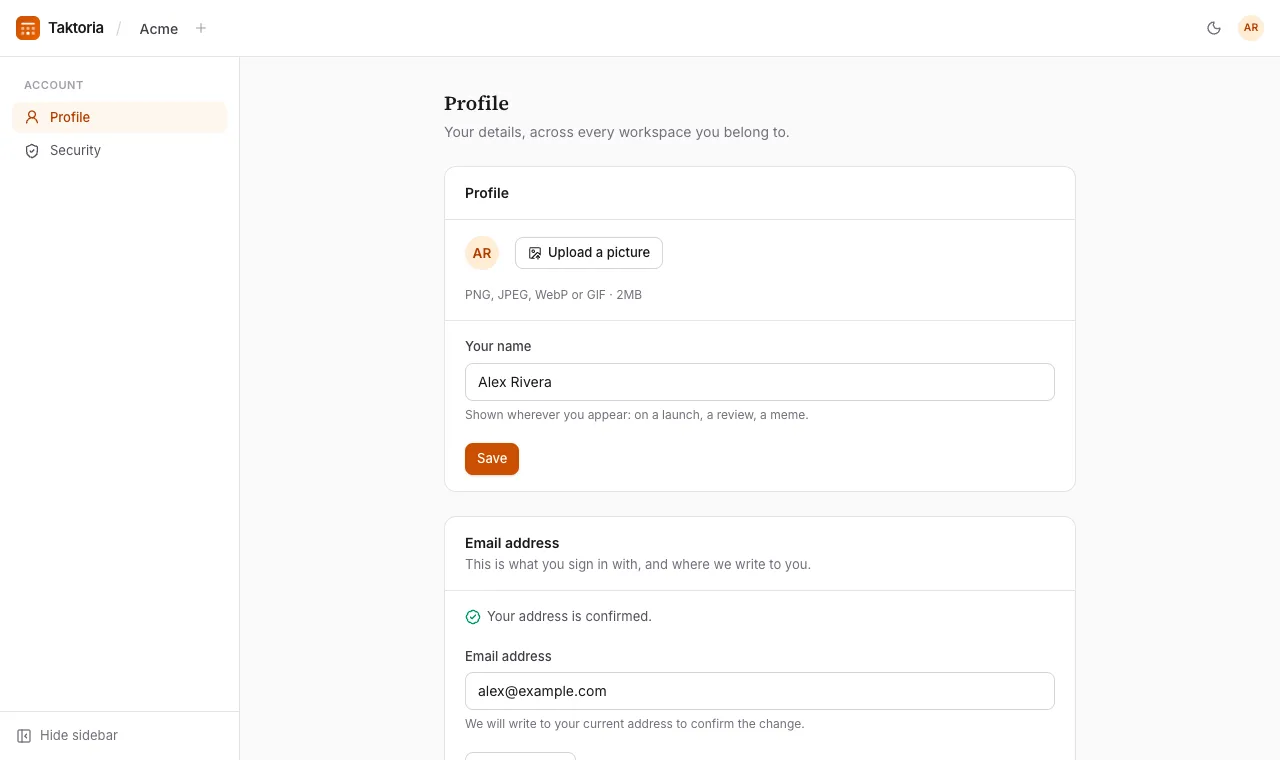
- Profile: your name and picture (PNG, JPEG, WebP or GIF, under 2MB), and your email address, which you confirm from your current one. Signing in with Google brings in your Google picture, unless you have uploaded one of your own.
- Security: change or set your password, turn on two-factor authentication with an authenticator app, save your backup codes (each works once), and see every device you are signed in on, signing any of them out.
Changing your password signs you out everywhere else.
Deleting your account
In Account, open Profile, and at the bottom, under Delete account, type your email address to confirm, and your password if you have one. If you only sign in with Google or SSO and have not signed in for a day, you are asked to sign in again first. It cannot be undone.
Deleting your account signs you out everywhere, and deletes your sign-in methods, sessions, memberships, seats, notifications and picture. What you made in a workspace, such as launches, objectives, check-ins, comments, go links and memes, stays with that workspace, without your name on it.
If you are the only owner of a workspace other people are in, you cannot delete your account until you make one of them an owner, in Settings → Members, or delete the workspace. A workspace nobody else is in is deleted along with your account, with everything in it, and the form names any that will be.
Language
Taktoria opens in your browser's language, and you can change it with the language picker at the bottom of every page. Your choice is remembered on that browser, and the emails Taktoria sends you follow the language you last used it in.
Notifications and email
The bell in the top bar opens your notifications, newest first; opening them marks them read. Each app sends email for the things that need you, such as a review assigned to you in LaunchCal. On your first day in a workspace you get a welcome email. After you sign up you also get a tip every other day about the apps you can use; every tip email has a link to stop them.