Dory
Live Q&A and polls for meetings. Attendees join with a short code, no account or download, ask anonymously if they like, and upvote what they actually want answered.
Creating an event
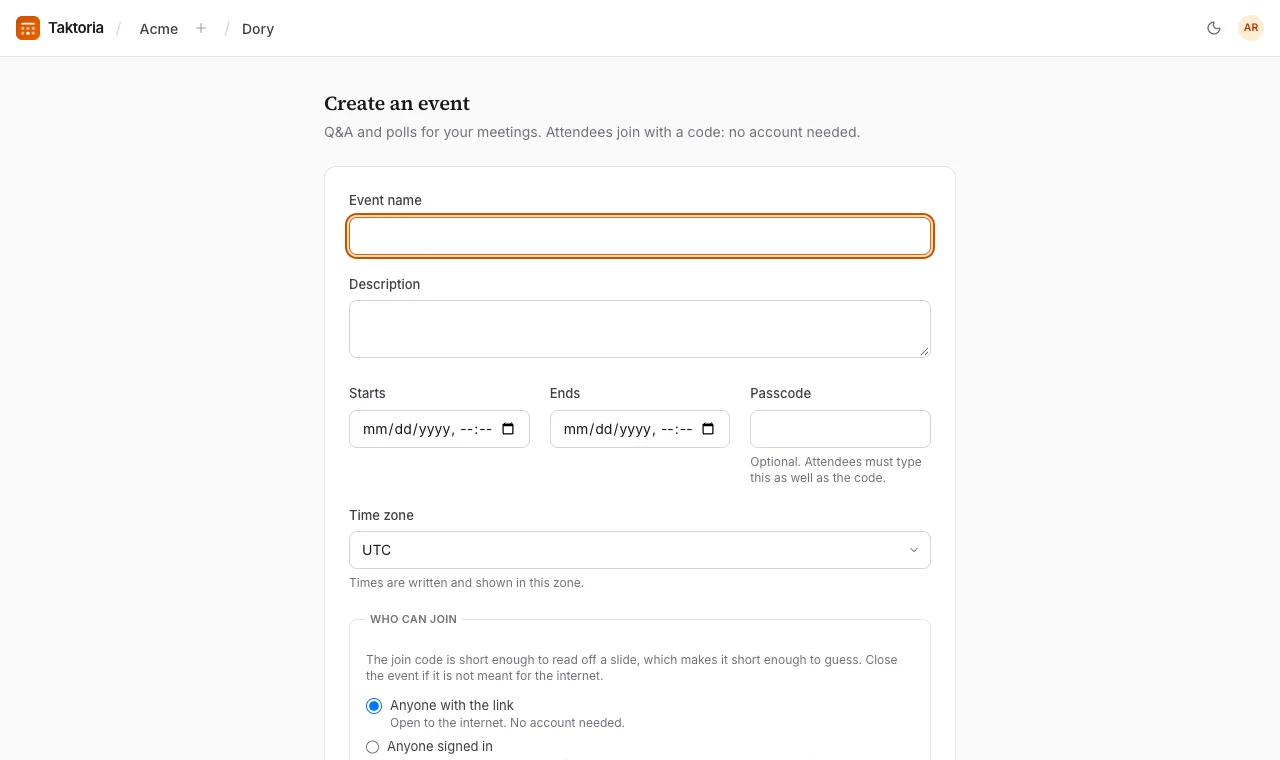
- Open Dory and create an event.
- Give it a name, and optionally a description, start and end times and a Passcode (attendees then type it as well as the code). The times are all in the event's time zone, which starts on the workspace's default time zone.
- Choose Who can join: Anyone with the link, Anyone signed in, Members of this workspace, or People at certain email domains. For the last, the Email domains on the workspace's list in Settings → Domains start all ticked, which lets in every domain on it, including ones added later; untick some to choose. A workspace that requires Google sign-in makes every such event Google only. Select Require Google sign-in to take only Google, with no emailed codes.
- Decide how the room behaves: whether to Allow anonymous questions, and whether to Approve questions before the room sees them.
- Save. The event starts as a Draft, and its code does not work until you select Start event. If its start time is still ahead, the button says Schedule: the event is then Scheduled, attendees who open the link see when it starts, and the code starts working on its own at the start time, or when questions open if that is earlier. Start now opens it early. A draft never opens on its own.
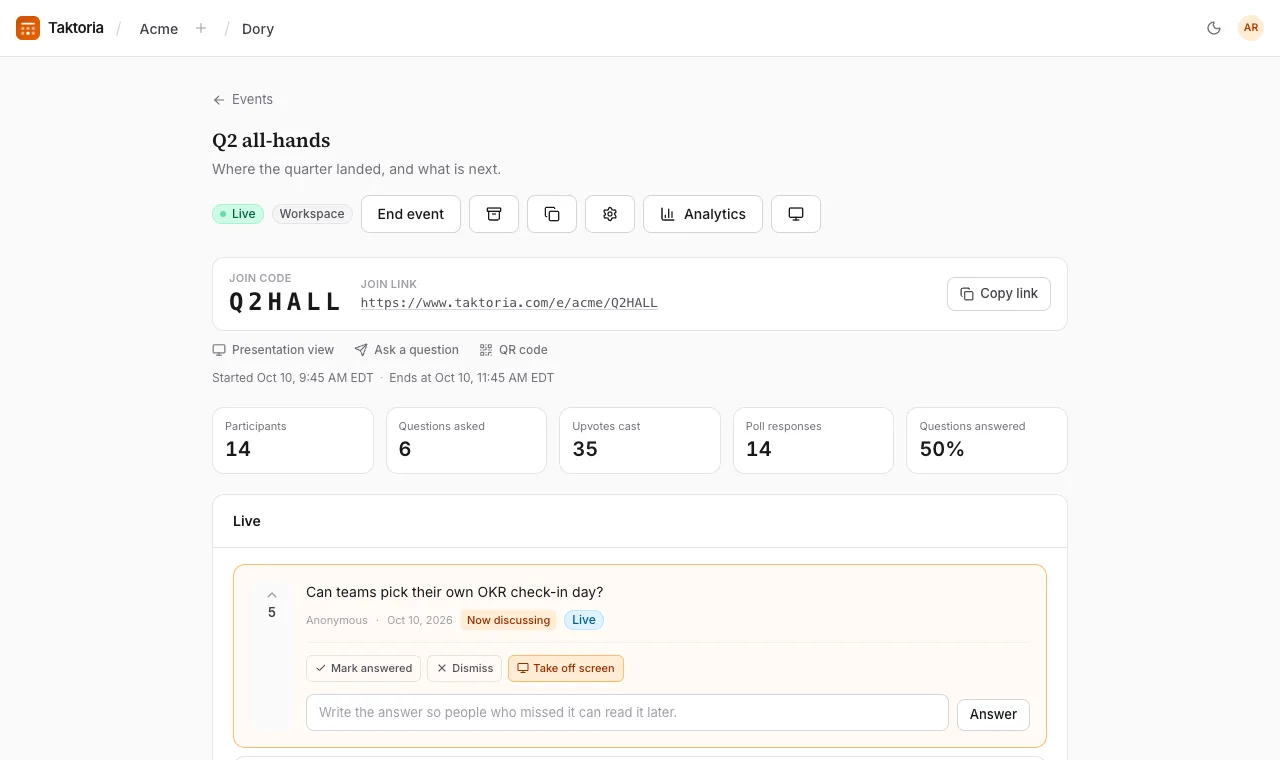
The event page shows the Join code, the join link and a QR code to put on a slide. Event settings has more: when questions open and close, instructions for attendees, upvoting, the profanity filter, whether attendees see “Powered by taktoria.com”, and how the big screen looks.
To run an event again, select Duplicate on its page or in the list of events: you get a draft with the same settings, hosts and polls and a new code, without its dates, questions or results.
How attendees join
Attendees go to the join page, enter the Event code your host shows, optionally their name, and the passcode if there is one, then select Join. No account and no app are needed. Scanning the event's QR code takes them straight in.
An event for People at certain email domains first asks for an address at one of its domains. Attendees select Continue with Google, or type their address, select Email me a code, and type the six-digit code from the email. No account is made, the host does not see the address, and the browser stays let in for 30 days. Members of the workspace running the event are let in without this. With Google, Your name is the name on the Google account, and cannot be changed; questions can still be asked anonymously where the event allows it. A link or QR code that carries the code asks only for a name, unless the event has a passcode. The join page then shows the event's name, to anybody the event lets in, and the workspace's icon if it has one. Only domains on the workspace's list count: an admin taking one off it turns its people away at once. With nothing on the list, the event is for members only.
Codes are six characters and not case-sensitive, and letters that are easy to misread are corrected automatically.
Joining, asking, upvoting and answering polls are protected by Google reCAPTCHA in the same way, with nothing for attendees to solve.
Asking and upvoting
Attendees write a question (up to 500 characters) and select Send, with Ask anonymously ticked if they prefer. They can upvote other people's questions, once each, and take the upvote back. Asking something that has already been asked adds an upvote to the existing question instead. A question can be edited until it is answered or on screen.
With the profanity filter on, rude words are masked with asterisks rather than blocked.
Running the Q&A
The event page lists questions in four groups: For review (when approval is on, new questions wait here and only their authors see them), Live, Answered and Dismissed. For each question you can:
- Approve it, Dismiss it, or Mark answered. Reopen brings an answered or dismissed question back.
- Show on screen to put it on the big screen, one question at a time.
- Write an Answer, so people who missed it can read it later. Saving an answer also marks the question answered.
The page refreshes itself while the event is live.
Polls
Select Add a poll, choose a type and write the question:
- Multiple choice: pick one option or, if you allow it, several.
- Word cloud: short answers, sized by how often they come up.
- Rating: a score on a scale of 2 to 10 points.
- Open text: longer answers, shown as written.
- Ranking: put options in order; first place scores the most points.
- Quiz: one right answer, scored on speed. Mark the correct answer when you create it.
Launch a poll to open it and Close it when you are done; only one poll is live at a time. Attendees select Submit, see the results, and can change their answer while it is open.
Once an event has a quiz, a Leaderboard card on the event page ranks the attendees: most right answers first, and the faster of two equal scores ahead.
The big screen
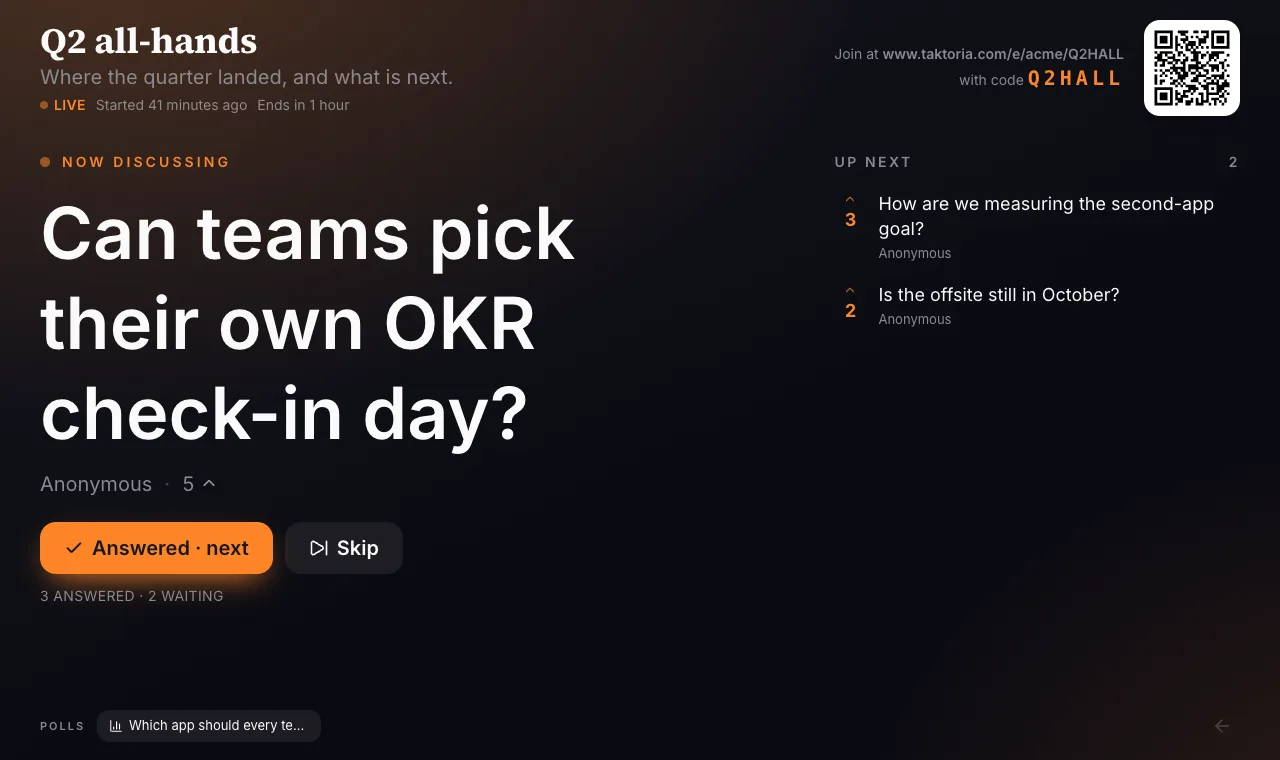
The presentation view is a full-screen page for the projector. It shows how to join (the address, the code and a QR code), the question on screen or the questions waiting, and takes over with a poll while one is live.
Turn on Work the queue from the big screen in the event's settings to run the Q&A from there: start with the top question, then Answered · next or Skip, in order of most upvotes. Choose the screen's colors under Presenter screen.
With a quiz in the event, select Leaderboard at the bottom of the big screen to show the rankings full screen, and Back to questions to return.
After the event
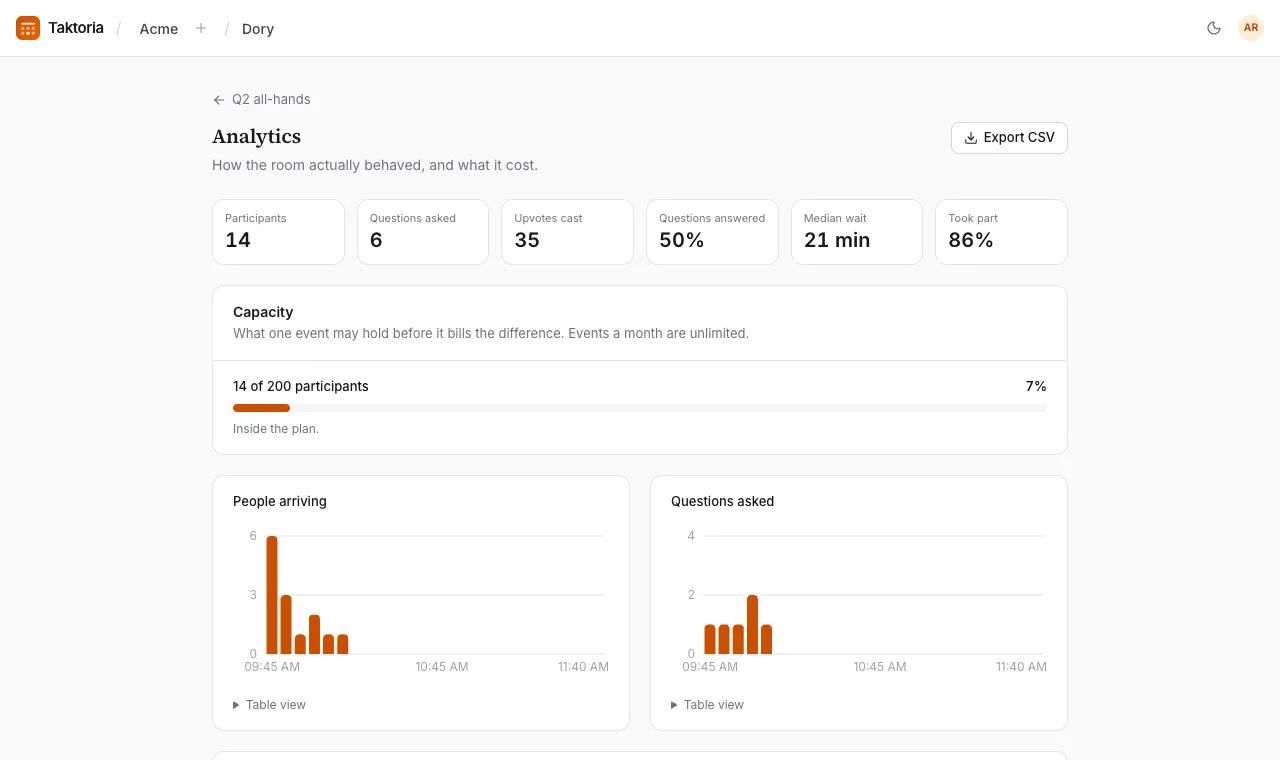
Select End event when you finish; Reopen brings it back. An event with an end time ends on its own then, just as if you had selected End event, and nobody can join, ask or vote after it. Near the end, Extend 15 minutes gives a live event more time. Reopening an event after its end time removes the end time, so it no longer ends on its own. Analytics shows how the room behaved: participants, questions asked, upvotes, questions answered, the median wait, how many people took part, when people arrived, and the most upvoted questions.
Archive hides an event from the list without losing anything. Delete event, in its settings, removes it with every question, vote and poll in it.
Export CSV, on the analytics page, downloads every question: when it was asked and by whom (Anonymous for anonymous ones), its status, its upvotes and its answer. It opens cleanly in Excel, Numbers and Google Sheets.
Participants and billing
Dory is billed per participant rather than per seat. Your workspace sets the Max participants per event; everyone who joins an event counts once, including anonymous attendees. Nobody is turned away if an event goes over: the extra participants are charged once, at the same rate, when the event ends.
Hosting takes a Dory seat, $3 per host per month with a minimum of 10, which an admin gives in Settings → Members as for any other app. Set how many hosts to pay for under Hosts, beside Max participants per event, on the Billing page. An event's Who can run this event list, in its settings, narrows that down to named people; admins and whoever created it always can. It can name teams too: everyone on a team, and on teams inside it, may then run the event.