LaunchCal
Run product launches the way a launch calendar does: a checklist generated from your process, a clean queue for every reviewer, and a calendar everyone else can read.
Launches, steps and reviewers
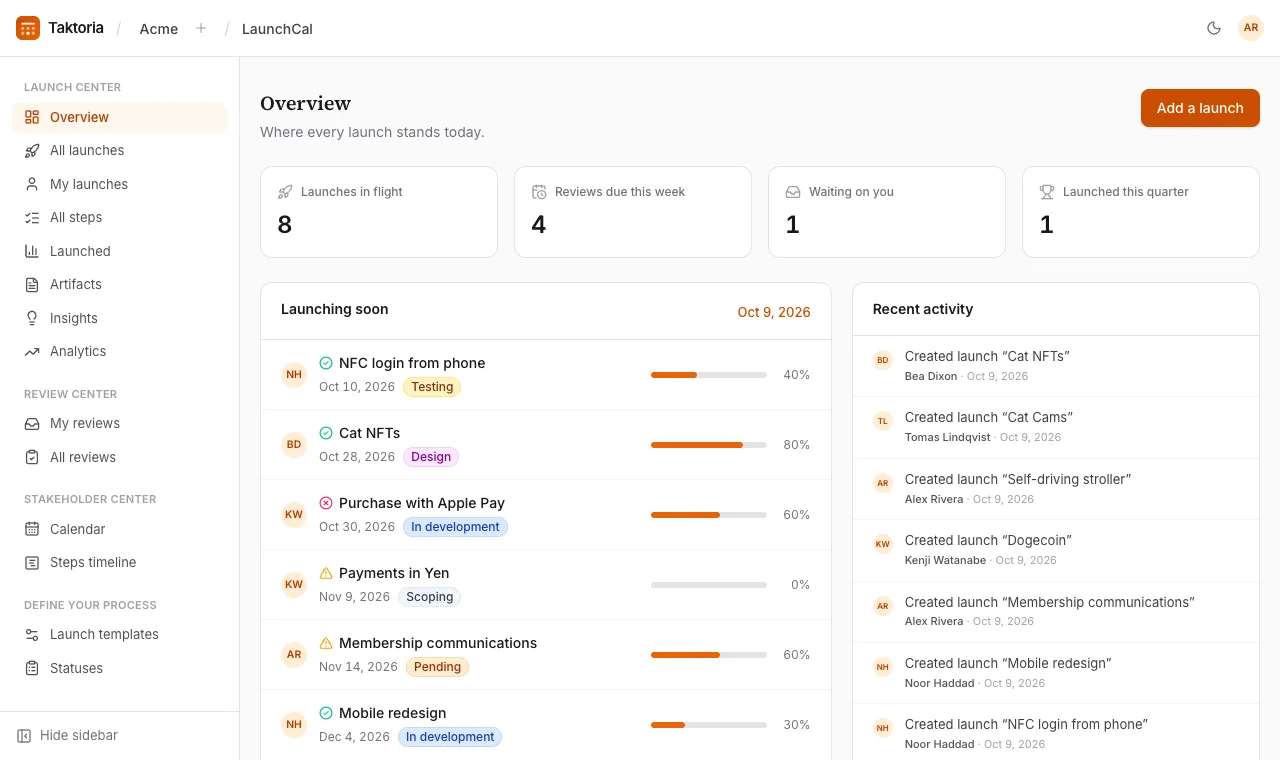
A launch is something you are shipping: a name, a description, its Owners, the teams it belongs to, stakeholders, and a planned launch date. Its status is one of Scoping, Design, In development, Testing, Launched, Pending or On hold.
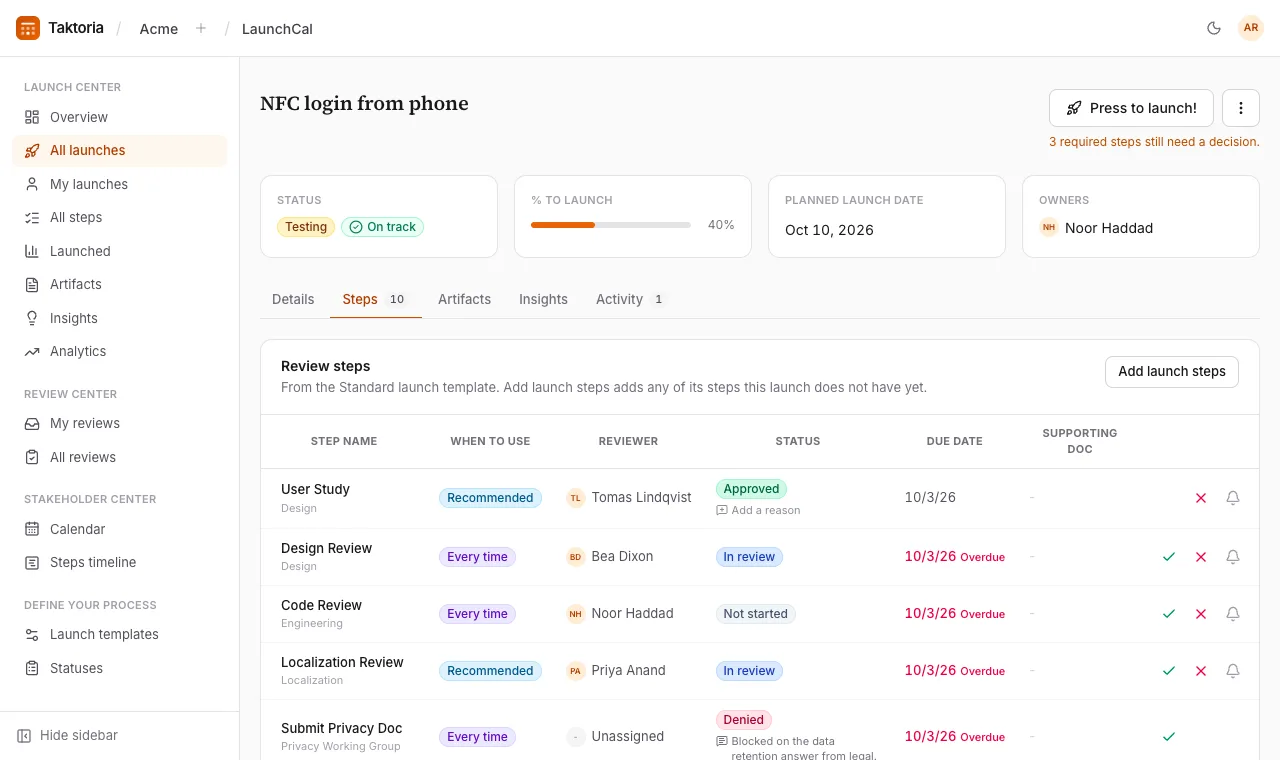
Each launch has steps, copied from its Launch template: one of the ways your workspace launches, each with its own steps. A step belongs to a functional team (Design, Engineering, Privacy and so on), has a reviewer, a start and due date, and is marked Every time (required), Recommended or Optional.
A reviewer settles a step as Approved, Denied, Exception or N/A; before that it is Not started or In review. % to launch is the share of steps that have been settled one way or another: a denial is not progress, an exception is, because somebody decided.
Finding your way around
The sidebar has four groups.
- Launch centre: Overview (launches in flight, reviews due this week, what is waiting on you, what launched this quarter, and what is launching soon), All launches, My launches (where you are an owner or a stakeholder; your teams' launches, and those of teams inside them, are in it too unless you untick Include launches of my teams, and of teams inside them), All steps, Launched, Launch artefacts and All insights.
- Review centre: My reviews and All reviews, which brings every functional team's reviews together; filter either by functional team.
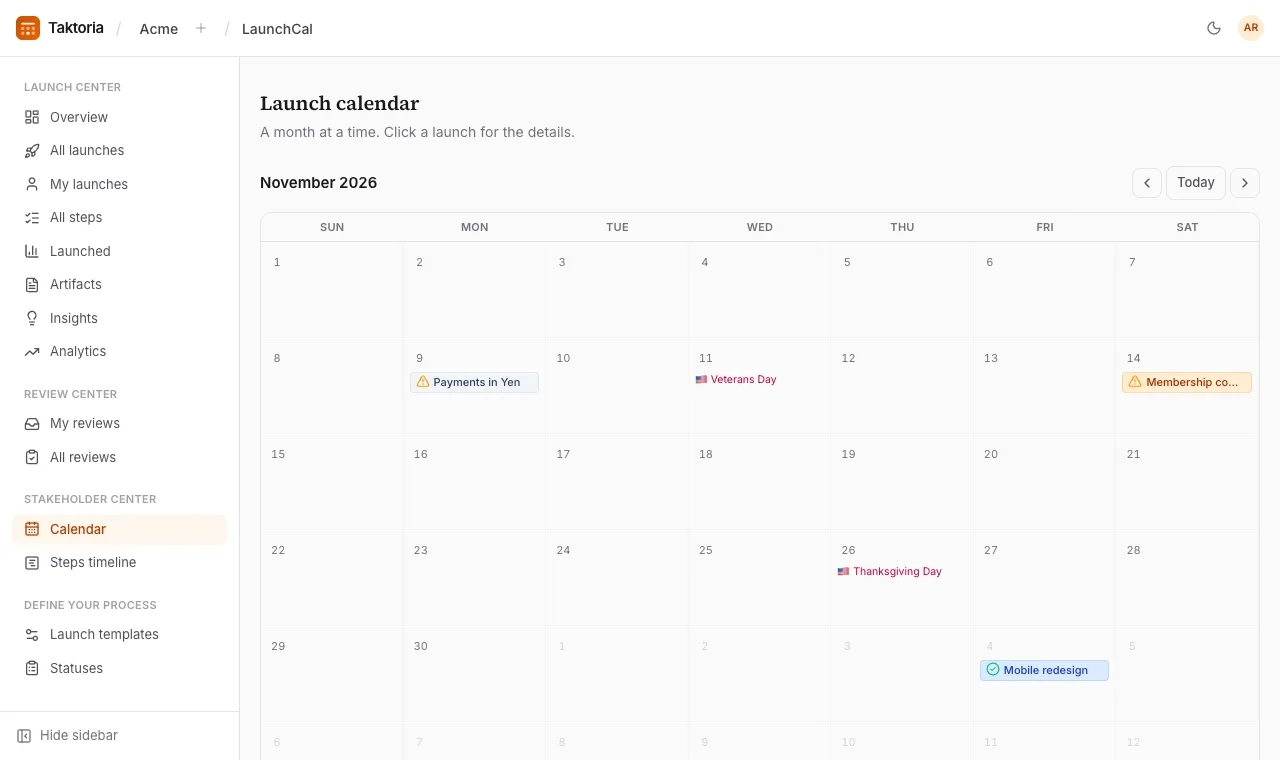
- Stakeholder centre: the Launch calendar (a month at a time) and the Steps timeline.
- Define your process: the Launch templates, and a reference page describing every status.
Each number on the Overview opens the list it counts, already filtered; untick the box above the list to see all of it. Above most lists, choose a fiscal year (last year, this year and next are always there), and one of its quarters or all four: launches go by their planned date, Launched by the day they launched, steps and reviews by their due date, and insights by when they were recorded. Each list opens on the current quarter; choose All years to see everything. The launch lists also filter by status, health, owners and teams; tick Drafts only to find your drafts.
Quarters follow your workspace's fiscal year, which an admin sets in Settings → Workspace → Fiscal year.
Adding a launch
- Select Add a launch.
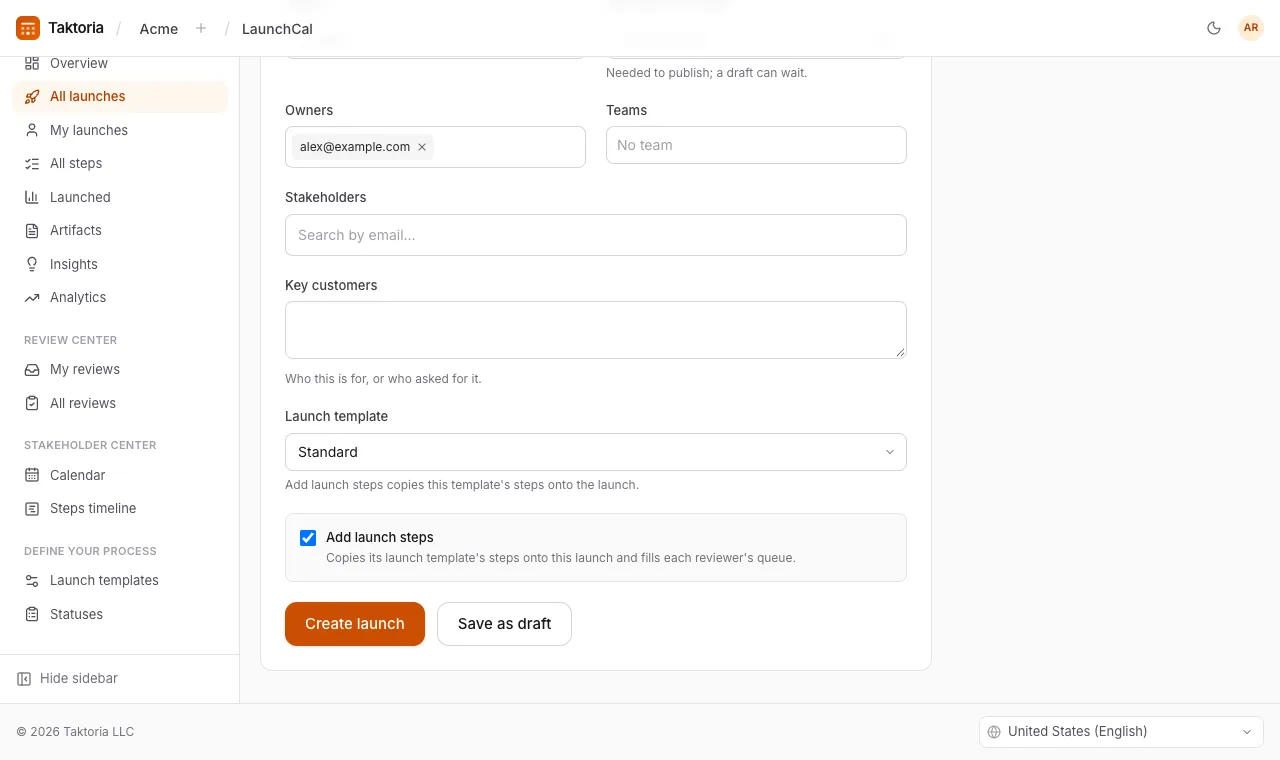
- Give it a name, and fill in what you know: description, status, owners (you, by default; add as many as you like), teams (as many as it belongs to, or No team), stakeholders and the planned launch date.
- If your workspace keeps more than one launch template, choose this launch's under Launch template. It starts on the default; with only one template, the choice is not shown.
- Leave Add launch steps ticked to copy its template's steps onto it and fill each reviewer's queue.
- Select Create launch, or Save as draft to hold it back until it is ready.
Steps are scheduled back from the planned launch date: each is due a week before it, and starts as many days earlier as its typical duration. Assign a reviewer to a step by selecting its name. Selecting Add launch steps again later adds only the template steps the launch does not have yet, and creates its three artifacts. A launch's template can be changed under Details: Add launch steps then adds the new template's steps, leaving out the reviews the launch already has. No step is ever taken away.
Key customers is free text: the customers a launch is for, or who asked for it. Fill it in when you add the launch, or later under Details.
Create launch needs a Planned launch date, because the steps are scheduled back from it; so does Publish on a draft. Save as draft does not, and a published launch keeps its date. A launch's Details tab reads first: select Edit to change it.
Drafts
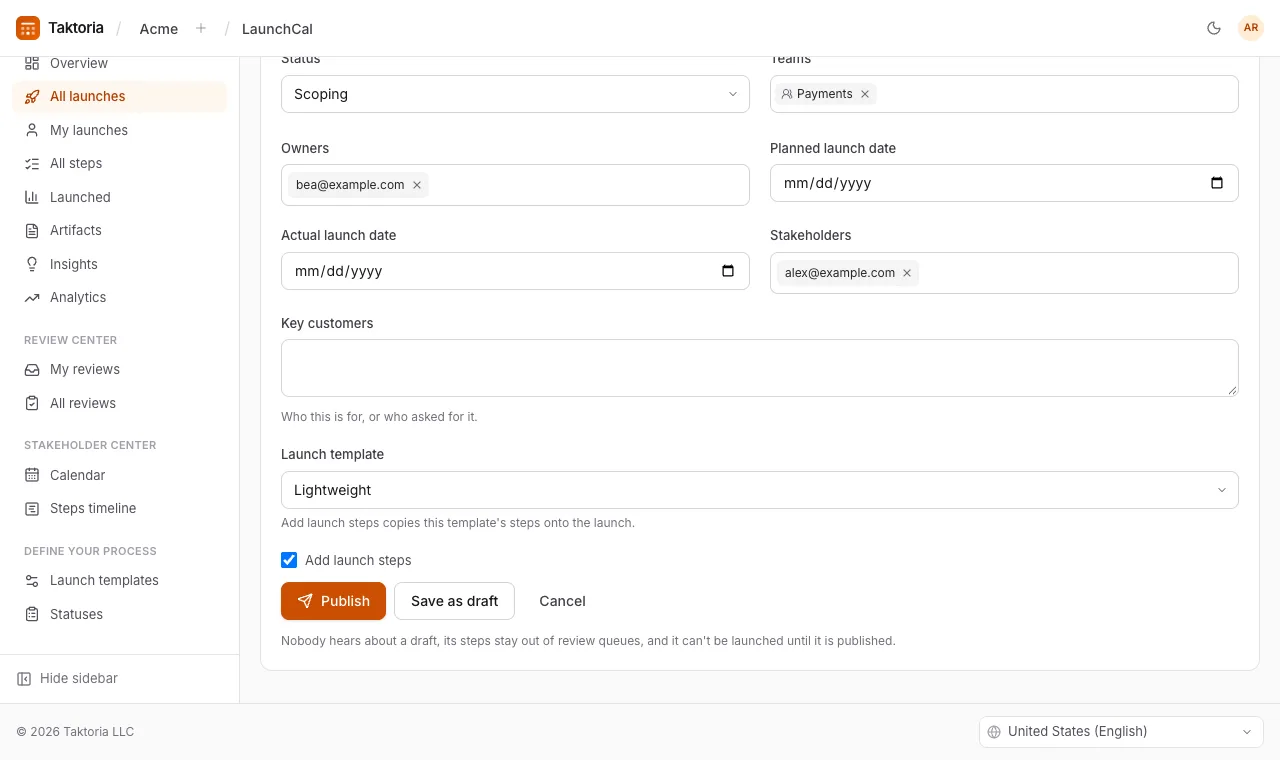
A draft tells nobody: its stakeholders and reviewers hear nothing, its steps stay out of review queues and reminders, and the Overview, Calendar and Steps timeline leave it out. All launches and My launches show it with a Draft badge. Saving a draft adds no steps yet, even with Add launch steps ticked. When it is ready, select Publish on its page: that announces it as creating it would have, tells the reviewers already named on its steps, and adds its steps if it has none and Add launch steps is ticked beside the button. A published launch can go back to being one with Switch to draft, until it has launched. A draft opens with its details ready to edit, its Launch template too, as when it was added: Publish there saves what is in the form and publishes it, and Save as draft saves it and keeps it a draft.
Reviewing
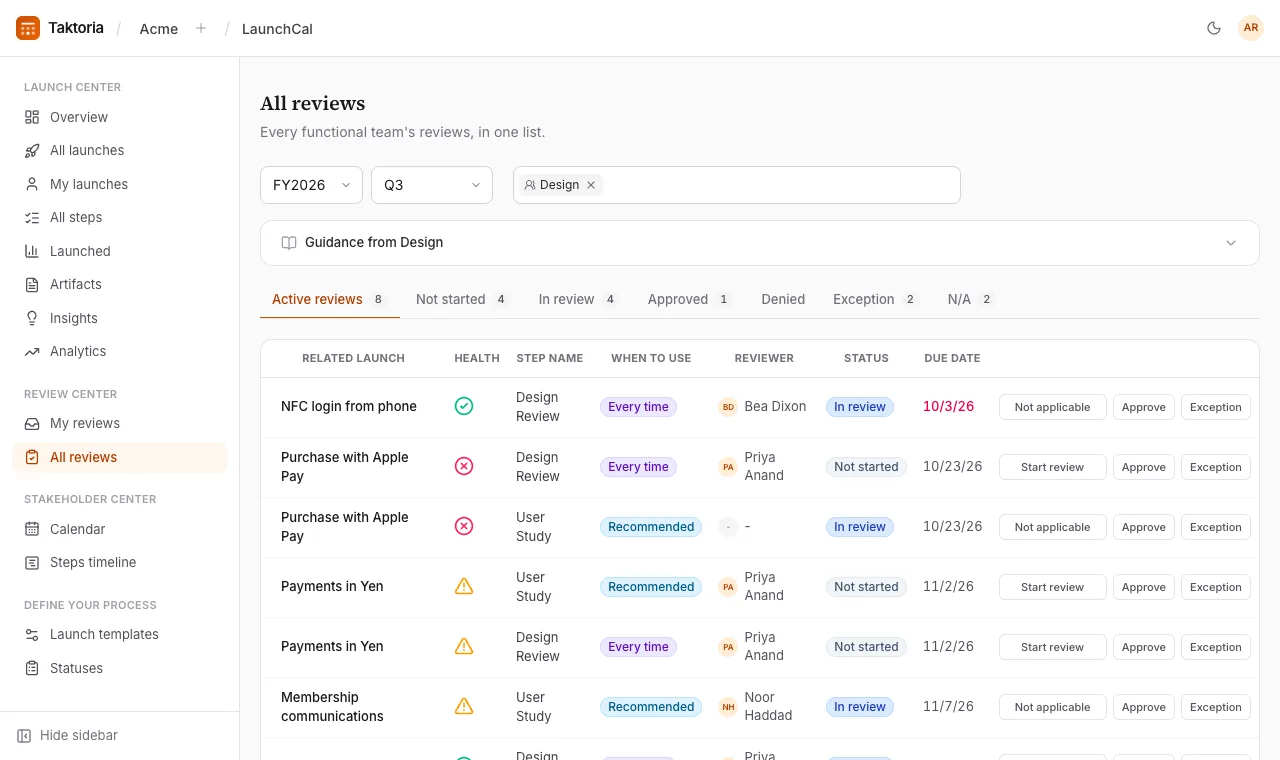
My reviews lists every step assigned to you, soonest first. All reviews lists every functional team's steps, in tabs: Active reviews, then one for each status with how many steps sit in it. Narrow either list to one team or several with the All functional teams filter above it. With one team chosen, its guidance sits folded above the list: select it to read it. A team's old queue address still works, and opens All reviews filtered to that team.
Decide a step from its row: Start review, Approve, Exception or Not applicable. On the launch page itself, each step has Approve and Deny buttons, and selecting a step's name opens it to edit everything about it, including notes and a supporting document. A step past its due date and still undecided shows its date in red.
Approve, Deny, Exception and Not applicable first open a box for a Reason; the same button in the box then makes the decision. The reason is optional, so leave the box empty to decide without one. It shows under the step's status, in Recent activity, and in what the owners and stakeholders are sent. A new decision replaces it, and moving the step back to Not started or In review clears it. A reason can come later too: select Add a reason under a decided step's status, or select its reason to change it.
The owners and stakeholders hear about decisions. An email goes out only when a step is denied or given an exception, since those are the ones that need a person.
Nudging a reviewer
When a step has a reviewer, the bell icon next to it (Nudge reviewer) sends them a reminder by email and in the app, or a Slack message if your workspace has connected Slack. A step can be nudged at most once an hour.
Launching
Select Press to launch! on the launch page. While a step marked Every time still has no decision, the button says how many are outstanding, and you can still select Launch anyway to force it. Launching sets the status to Launched and the actual launch date to today, and tells everyone who worked on it: the owners, the stakeholders and every step's reviewer. A draft has Publish in place of Press to launch!, and cannot be launched until it is published.
A launch's page keeps its status, progress, planned date and owners at the top, and the rest in tabs: Details, Steps, Artefacts, Insights and Activity.
Activity holds comments and updates, newest first, written in Markdown. An update also says, from a dropdown, whether the launch is On track, At risk or Off track: the newest one shows beside its status, and as an icon in a Health column wherever launches are listed. Point at the icon to read the update behind it. Only whoever wrote a comment or an update can edit it. Once a launch has launched, its health is left out everywhere, and its Activity takes comments only.
Artifacts and insights
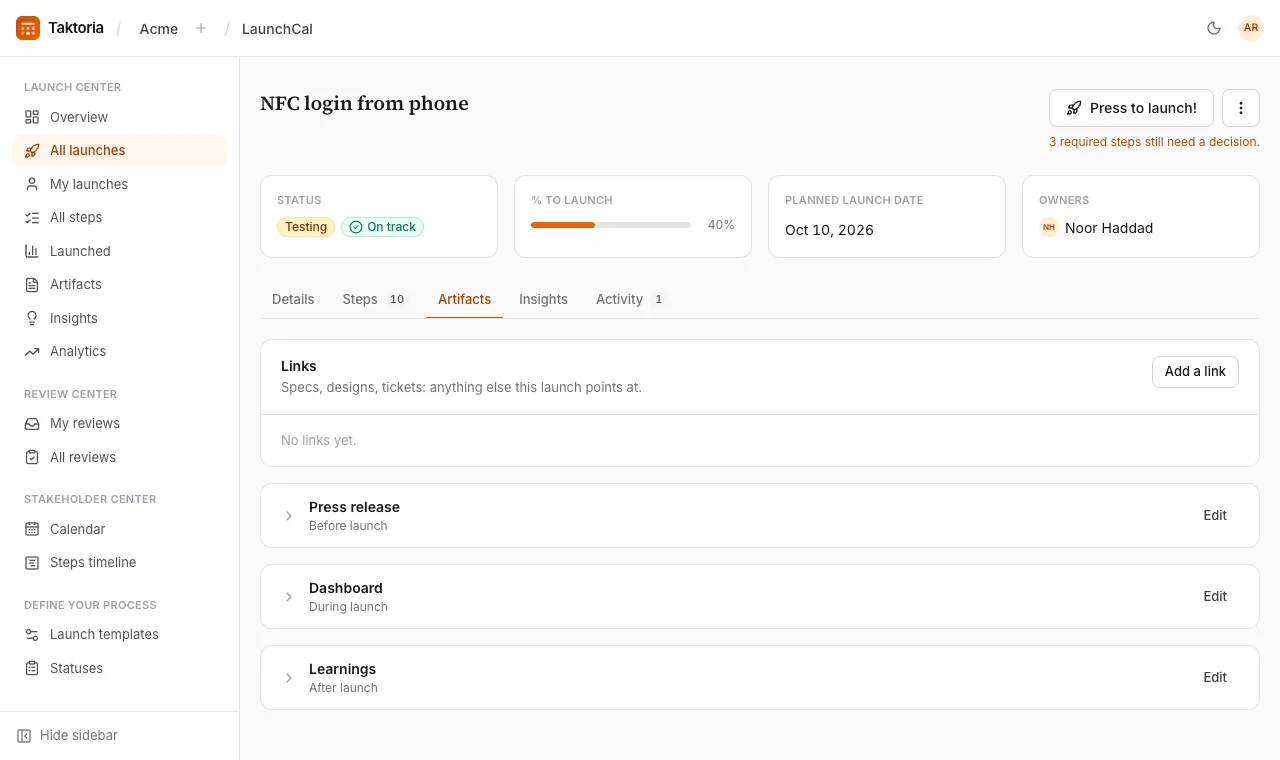
Each launch carries three artifacts, written in Markdown from templates: a Press release before launch, a Dashboard during, and Learnings after. Each can also point at an external document. Launch artefacts lists every launch's three: Open goes to one on its launch, Create to its editor when it is still empty. On a launch's Artefacts tab, each starts folded to its name: select it to read it.
Insights collect what you learned: a sentence and a sentiment (positive, neutral or negative), added from the launch page. All insights gathers them across every launch, so the next team inherits the lesson.
Links sit at the top of the Artefacts tab, for anything else the launch points at: a spec, a design, a ticket. Select Add a link and give it a title, a URL and, if you like, a line on what it is.
Analytics
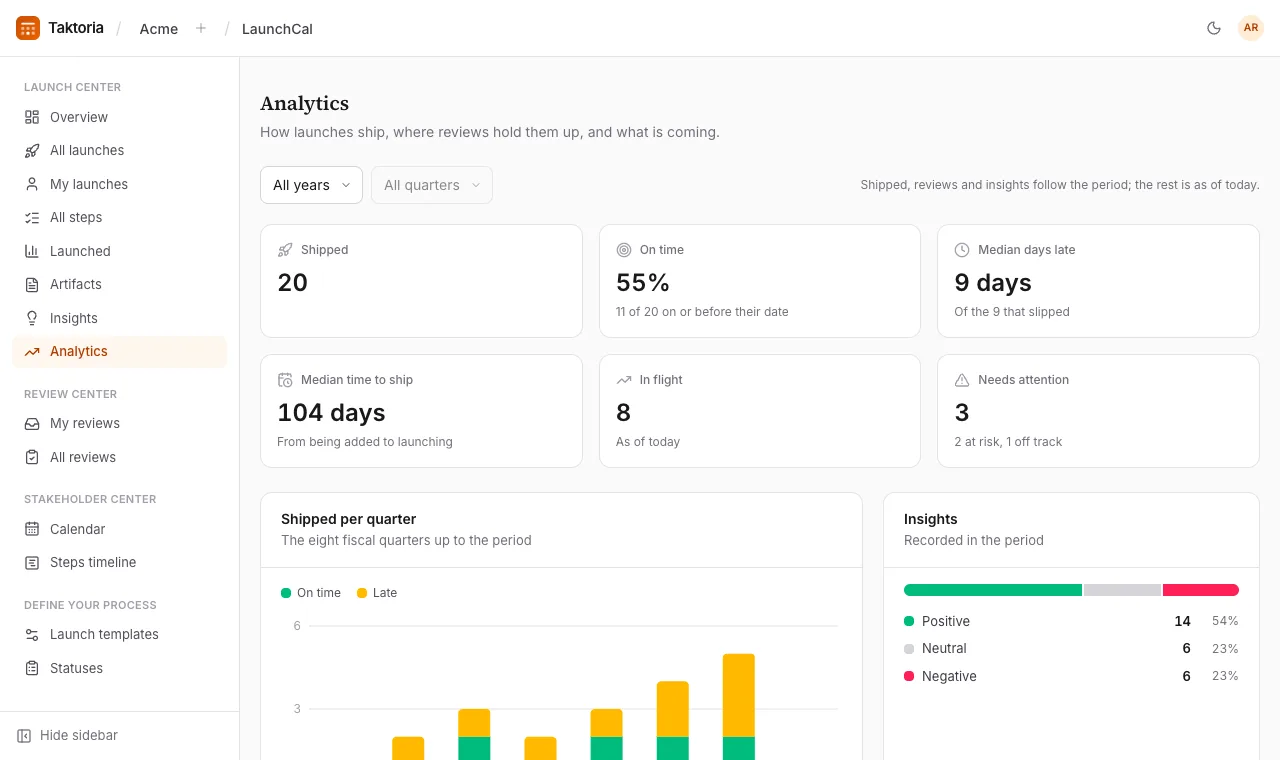
Analytics, in the Launch centre, shows how your launches go. Choose a fiscal year and quarter above it, as on the lists; it opens on the current quarter.
- Shipped, On time, Median days late and Median time to ship are about the launches that launched in the period. On time means on or before the planned launch date; the time to ship runs from a launch being added to its launch. Shipped per quarter shows the eight quarters up to the period.
- Reviews by team counts the steps each functional team decided in the period, how many by their due date, and how many are overdue now. The slowest team, and the one with the most overdue reviews, are called out above the table.
- Insights splits what was recorded in the period by sentiment.
- In flight, Needs attention, the breakdowns by status and health, and Coming up are as of today, whatever the period. Coming up also lists any launch planned on a public holiday in your workspace's markets.
Drafts count nowhere until they are published.
Defining your process
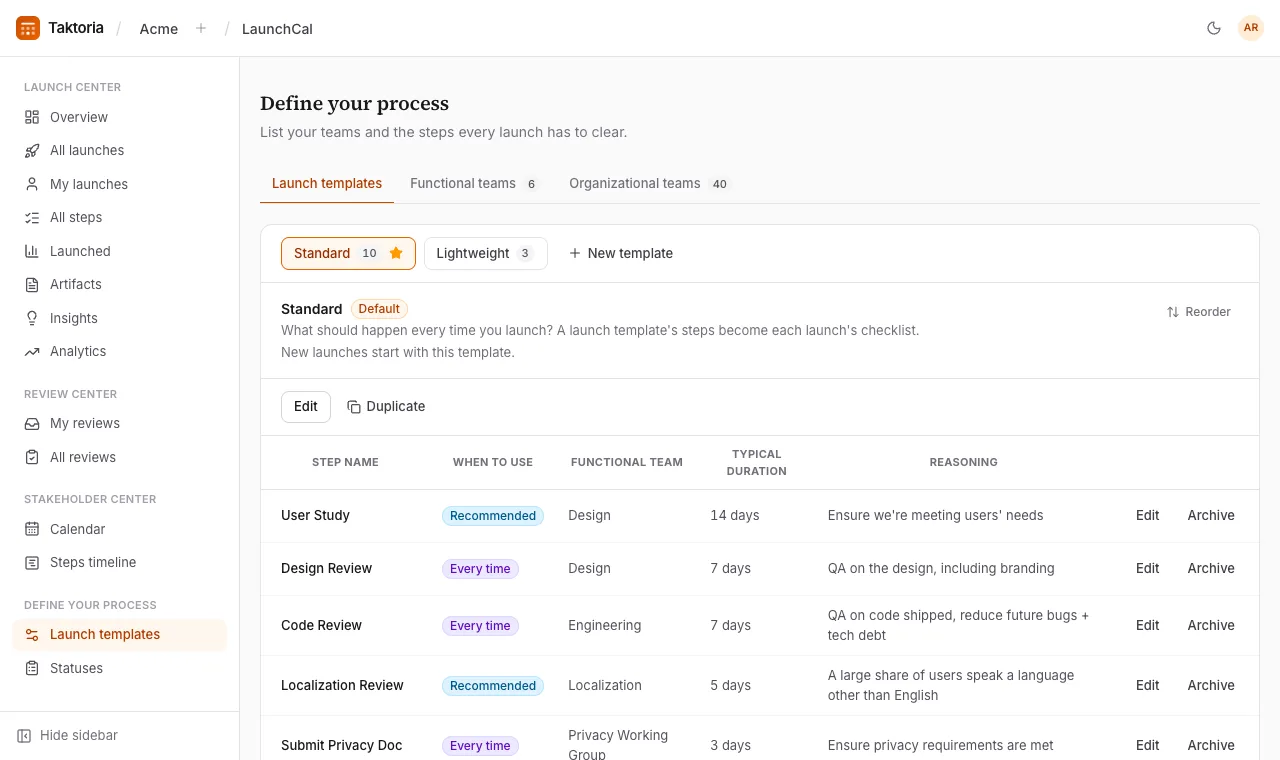
Launch templates is where your process lives. A workspace can keep several, each with its own steps: a full one for big launches, say, and a lighter one for small changes. Select a template above its steps to open it. The one marked Default is the one new launches start with. With more than six templates, select the open one's name to search for another.
Each step has a name, a functional team, when to use it, a typical duration in days, and the reasoning behind it. Add a step to the open template, edit one, or Archive it; archiving a step keeps it on launches that already have it.
A template's order is the order a launch's steps come in. To change it, select Reorder above the table, drag a step by its handle or move it with the arrows beside it, then select Done. Only that template's steps move, and launches that already have their steps keep them in the order they had.
Add a template with New template. For the open one, select Edit to rename or describe it, Duplicate to copy it with all its steps, Set as default to have new launches start with it, or Archive. The default cannot be archived: make another one the default first. An archived template is offered to no launch, and the launches that use it keep it; select Archived templates to list them, and Restore to bring one back.
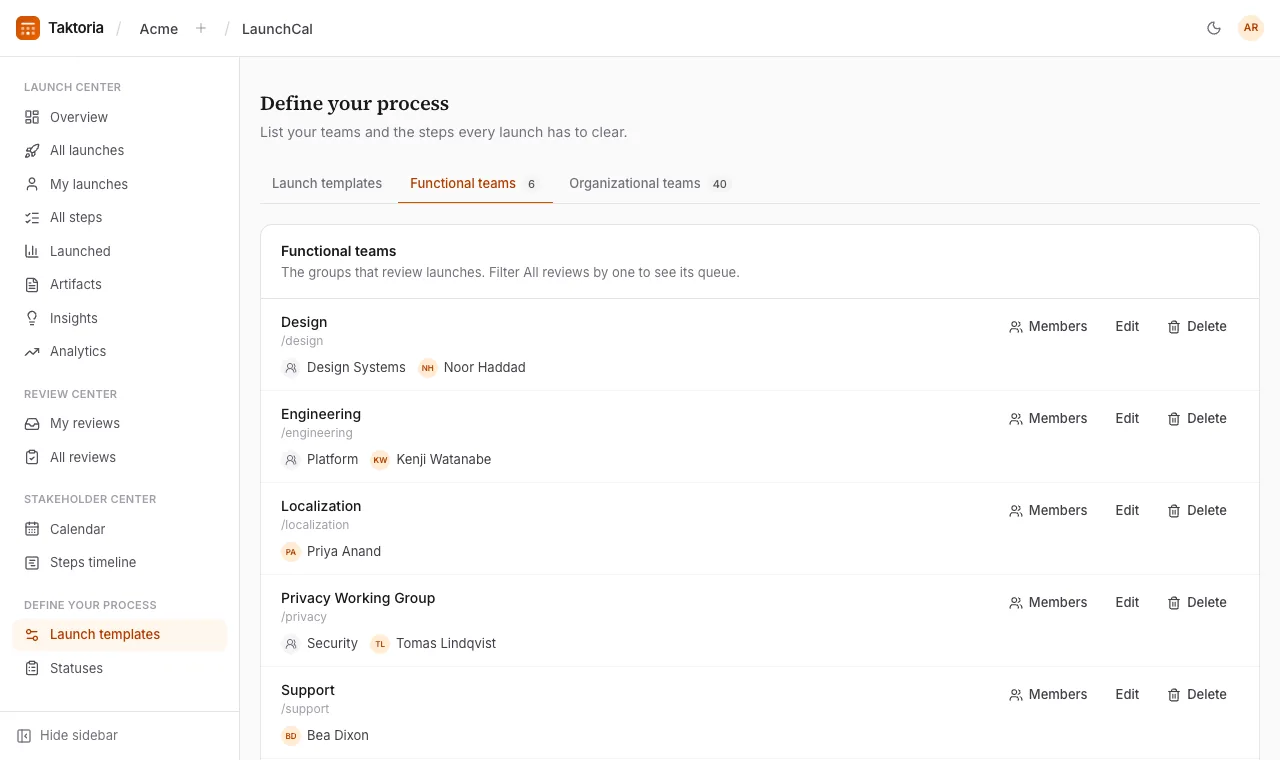
The same page manages your functional teams, each with guidance for launchers written in Markdown that shows above All reviews and My reviews when they are filtered to that team, and the teams that own launches.
Each has a tab of its own: Launch templates, Functional teams and Organisational teams. Editing a step or a team opens its form beneath it, across the page.
Functional teams
An admin chooses who is on each functional team: select Members beside it, add people or teams, and select Save. Everyone on a team you add, and on the teams inside it, is on the functional team too. When one of its steps is given a Reviewer, the functional team's people are listed first.
An admin can also delete a functional team with Delete beside it. Launches that already have its steps keep them, with its name on them; its steps in every launch template are archived, so new launches do not get them.
Holidays
The Calendar shows the public holidays of your workspace's markets on the days they fall, each with its country's flag, so a launch is not planned for a day nobody is at work.
If a launch's Planned launch date is a public holiday in one of your markets, its form says so as soon as you pick the day, and its page says so beside the date until it has launched. It is a warning, not a rule: the launch can still go ahead that day.
The markets are the United States to begin with. An admin changes them in Settings → Workspace → Holiday markets: add a country from the list, remove one with its ×, and select Save. The holidays of the next 90 days are listed beneath.
Notifications and Slack
- A new launch tells its stakeholders.
- An assigned step tells its reviewer, in the app and by email.
- A decision tells the owners and stakeholders; by email only for denials and exceptions.
- A launch tells everyone who worked on it.
Nothing is sent about a draft or its steps until it is published.
If an admin connects Slack in Settings → Integrations, LaunchCal also posts to a default channel and messages reviewers directly. Each kind of post can be turned off there.
Who can do what
Anyone with a LaunchCal seat can add and edit launches, decide steps and launch. Only workspace admins can change the process: the launch templates, functional teams and the teams that own launches. Everyone else can read it. The owners and reviewer fields decide who is notified and whose lists a launch appears in, not who may change it.