Workspace administration
For owners and admins: members and seats, billing, teams, domains, single sign-on, Slack and API keys. Everything here is under Settings.
Roles
A workspace has three roles.
- Owners control everything, including billing, and are the only ones who can make somebody else an owner, or change or remove another owner.
- Admins manage settings, members, seats and billing.
- Members use the apps they have seats on.
Only owners and admins see Settings. A workspace always keeps at least one owner, and nobody can remove themselves.
Inviting members and giving seats
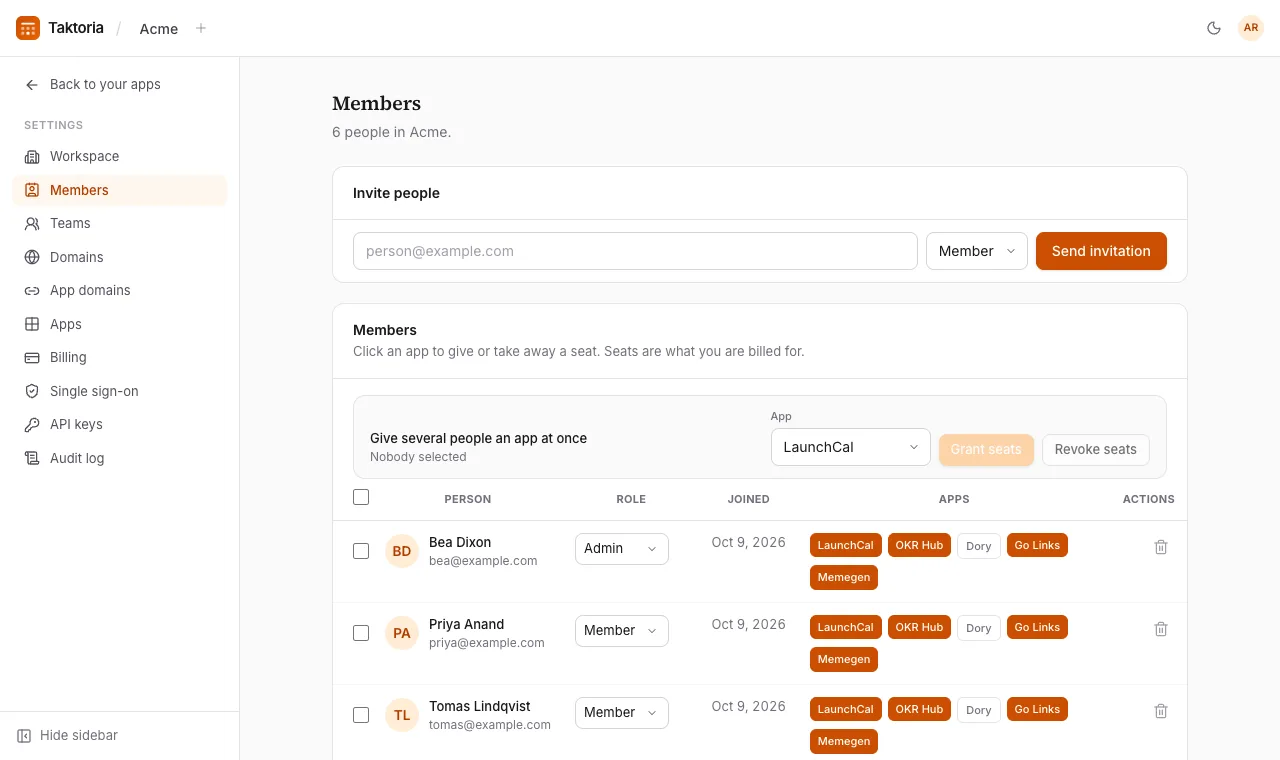
In Settings → Members:
- Under Invite people, enter an email address, choose a role and select Send invitation. Pending invitations can be resent or cancelled; each expires after 7 days.
- Give someone a seat by selecting an app in their row. Seats are what you are billed for.
- To do many at once, tick the people, choose the app, then Grant seats or Revoke seats.
You cannot assign more seats than the subscription includes: raise the number on the Billing page first. Taking a seat away does not lower the bill; the seat stays paid for and free for somebody else. Removing a member ends their access straight away and releases their seats, and joining by email domain will not add them back; an invitation will.
In Settings → Apps, Give new members a seat is on for every app unless you turn it off. Whoever joins, by invitation, SSO or your email domain, gets a seat on each app it is on for the first time they open the workspace. If an app's seats are all taken, they join without that one, and owners and admins get an email saying who is waiting.
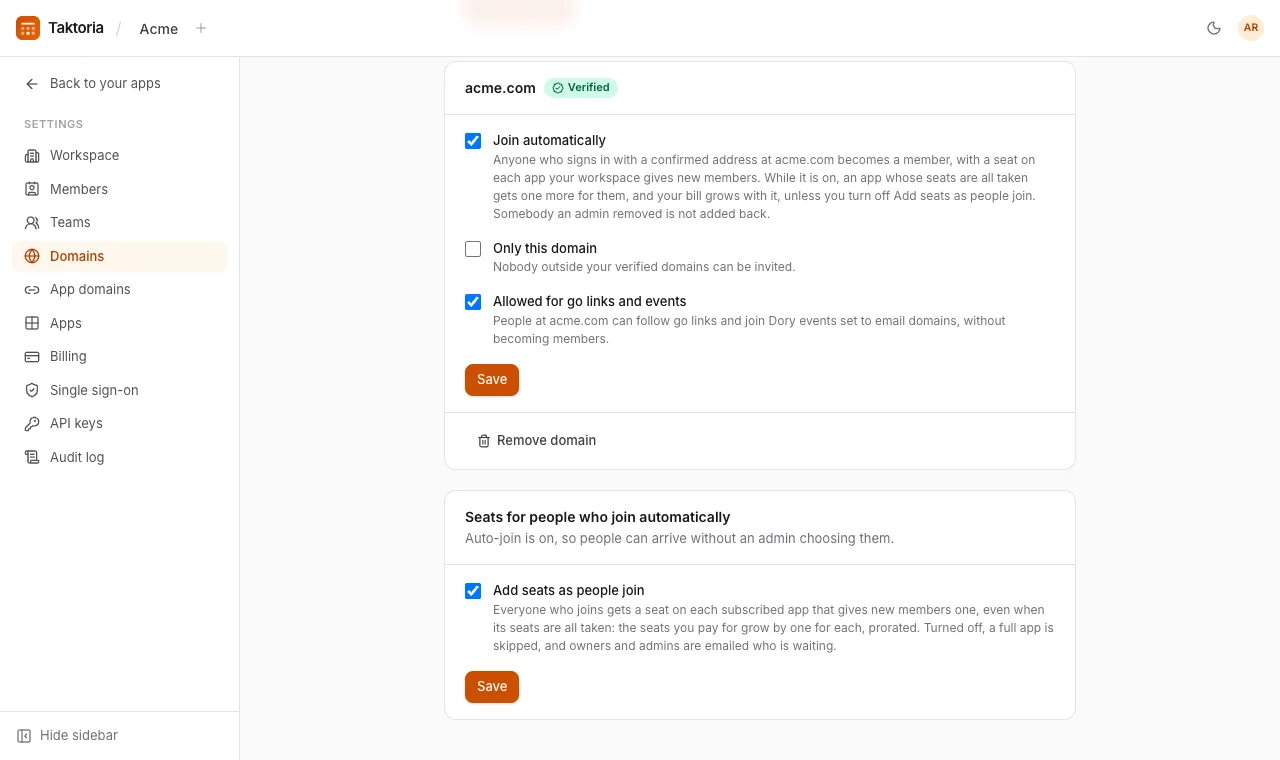
While Join automatically and Add seats as people join are both on, in Settings → Domains, nobody waits: a full app's seats grow by one for each new member instead, and your bill with them. That holds for everybody who joins while they are on, invited or not.
Plans and billing
Every app is on one subscription. Most are priced per seat per month, and Dory by participants and hosts:
| App | Price | Minimum |
|---|---|---|
| LaunchCal | $3 per seat | 10 seats |
| OKR Hub | $3 per seat | 10 seats |
| Go Links | $2 per seat | 10 seats |
| Memegen | $2 per seat | 10 seats |
| Dory | $0.80 per participant | 20 per event |
| Dory hosts | $3 per seat | 10 seats |
For Dory you set Max participants per event, and buy a seat for each person who hosts; an event that goes over is billed the difference at the same rate.
In Settings → Billing, tick the apps to include and set their seats, then subscribe. Payment is taken by Stripe. Changes are prorated, removing an app credits its unused time, and Manage billing opens Stripe's portal for cards and invoices. A promo code goes in Promo code, under Credit and promo codes on the same page, and comes off the next bill.
New workspaces get a 14-day trial with no card. While it runs, a line across the top of the app counts the days left, and admins see Subscribe beside it, which opens Settings → Billing. Once a card is on file the line goes: the trial runs to its end, and the subscription carries on from there. If a payment fails, the apps keep working while it is retried.
To pay for a year up front, choose annual at the top of the plan: a year costs ten months. Switching bills the new period from today, and credits what is left of the current one.
While Join automatically and Add seats as people join are both on, in Settings → Domains, an app whose seats are all taken gets one more for each person who joins, prorated, and the plan says so under the app. Turn Add seats as people join off to keep the number you chose.
Teams
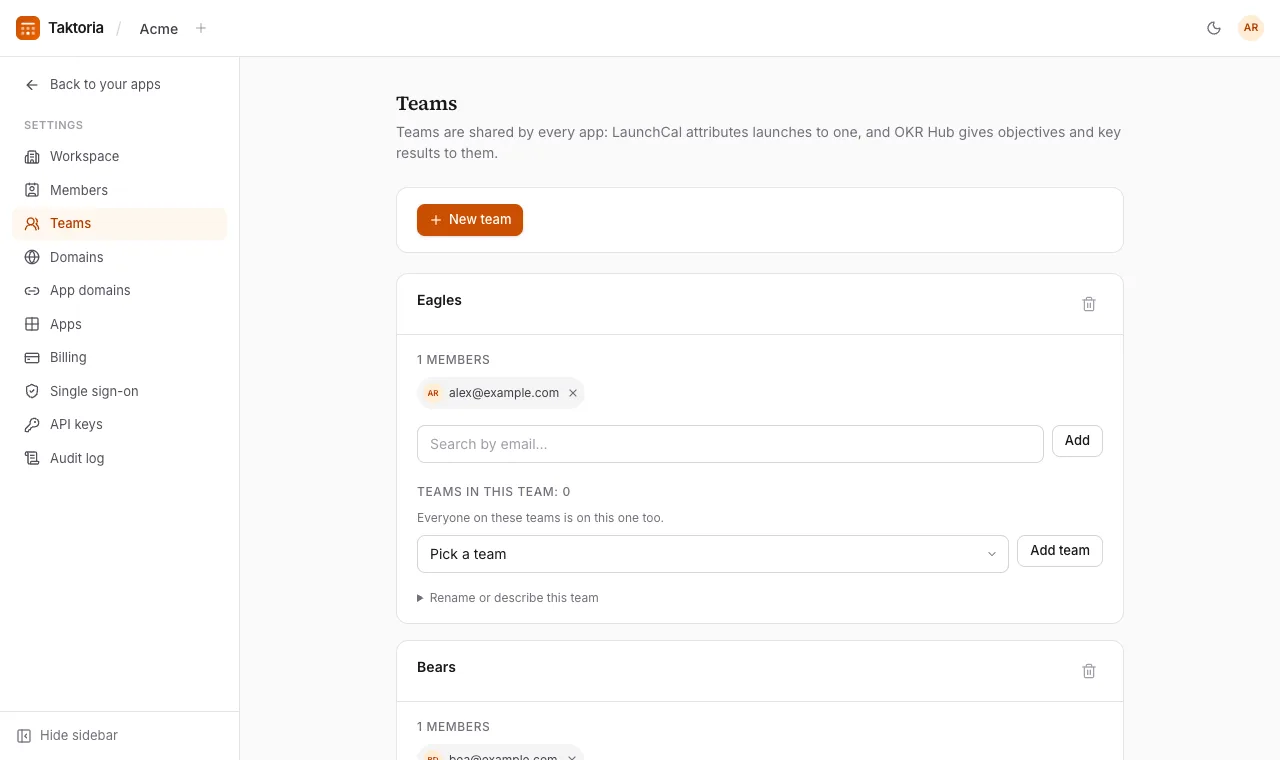
Settings → Teams holds the teams every app shares: LaunchCal attributes launches to them, and OKR Hub gives them objectives and key results. Create a team, add and remove members, rename it or delete it. Deleting a team keeps its launches and objectives; they just stop belonging to a team.
A team can also hold other teams: pick one beside Add team on its card. Everyone on a team inside it is on it too, all the way up, for owning and seeing objectives and running Dory events. A team can never end up inside itself: one that would close a loop is refused.
Workspace settings
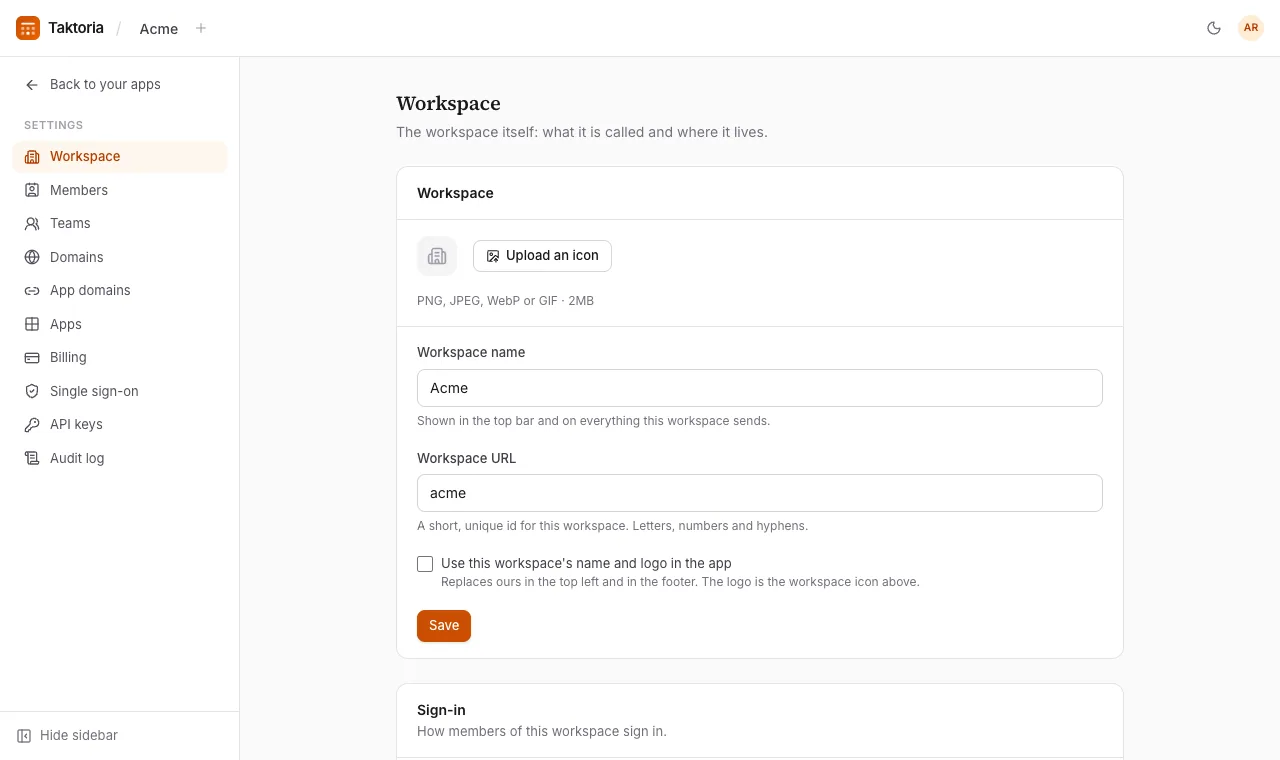
Settings → Workspace holds the workspace's name, its address, its icon (PNG, JPEG, WebP or GIF, up to 2MB) and its fiscal year: the month Q1 starts in, which every app that talks in quarters follows. Under Fiscal years in OKR Hub, an admin picks the years OKR Hub offers in its period lists and on the scorecard. The current fiscal year is always there; when the next one starts it takes its place, so tick last year to keep it. The Default time zone is picked to start with wherever a time zone is asked, such as a Dory event's dates; without one, they start on UTC.
Changing the workspace's address takes you to the new one. Links and bookmarks to the old address stop working, so share the new one.
You can also choose to use the workspace's own name and logo in the app instead of Taktoria's.
Require sign-in with Google, under Sign-in, lets members in only with Google: anybody signed in with a password or single sign-on is asked to sign in with Google first, and comes back to the page they wanted. Turn it on while signed in with Google yourself, so it does not lock you out. API keys are not affected.
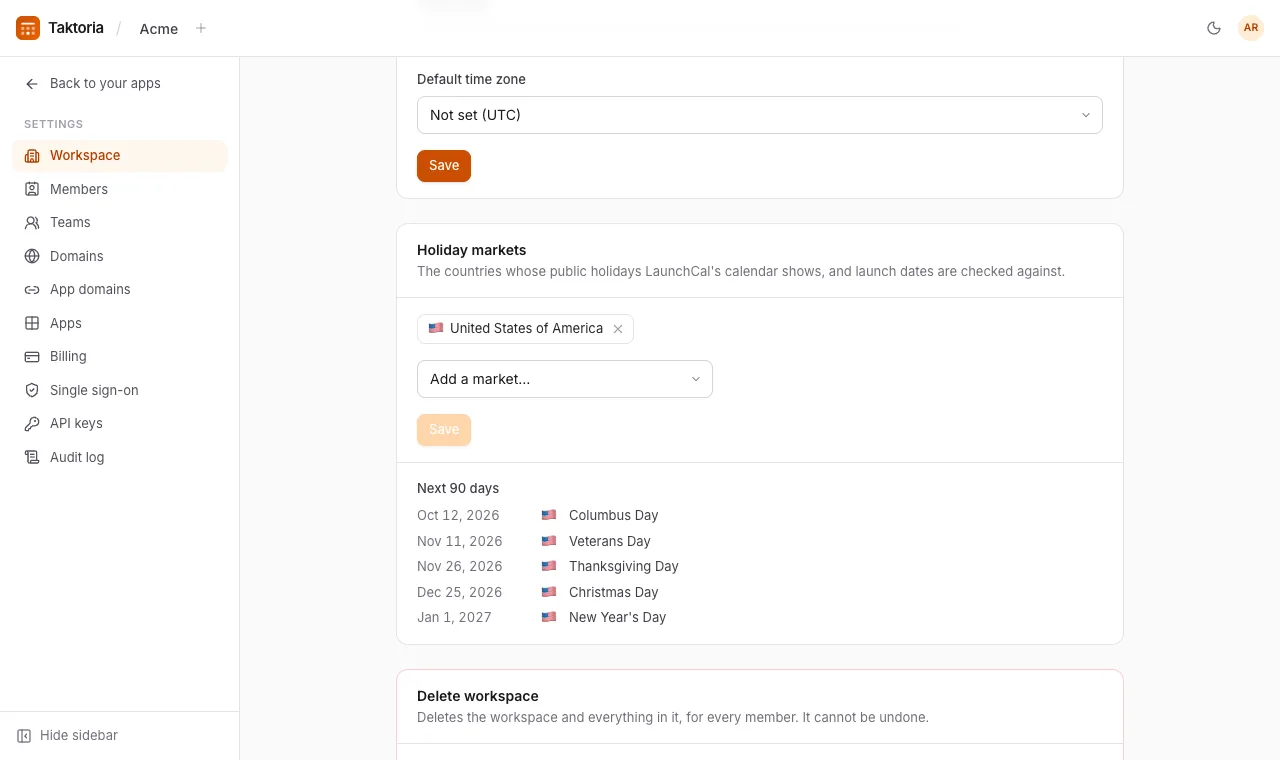
Holiday markets
Holiday markets are the countries whose public holidays LaunchCal's calendar shows and checks launch dates against; the United States to begin with.
Add a country from the list, remove one with its ×, and select Save. The holidays of the next 90 days are listed beneath. LaunchCal's calendar and its launch date warnings follow the change at once.
Deleting a workspace
Only an owner can delete a workspace. In Settings → Workspace, at the bottom, type the workspace's URL name or its name under Delete workspace, and select Delete workspace. It cannot be undone.
- Everything in the workspace is deleted straight away, for every member: launches, objectives, events, go links, memes, teams, members, seats, invitations, API keys, domains, single sign-on, the Slack connection and settings. Uploaded pictures, the workspace icon and Memegen templates, are removed from storage soon after.
- The subscription is cancelled at once, with nothing refunded for the rest of the period. Anything still owed, such as a Dory event that went over its capacity, is billed on a final invoice. Invoices already issued are kept, as tax records: contact support for a copy.
- App domains stop working, and you can remove their DNS records.
- Members keep their accounts and their other workspaces. You are taken to another workspace you belong to, or to create a new one.
Workspaces cannot be deleted through the API.
Email domains
In Settings → Domains, claim your company's email domain, publish the TXT record it shows with your DNS provider, and select Verify. A domain can belong to one workspace. Once verified:
- Join automatically adds anyone who signs in with a confirmed address at that domain as a member, with the seats your workspace gives new members. Somebody an admin removed is not added back.
- Add seats as people join, shown while Join automatically is on for a domain, is on unless you turn it off. Everyone who joins then gets a seat on each app your workspace gives new members, even one whose seats are all taken: the seats you pay for grow by one for each, prorated, and the Audit log records it. Turned off, a full app is skipped and owners and admins are emailed who is waiting.
- Only this domain stops anybody outside your verified domains from being invited.
- Allowed for go links and events, on unless you turn it off, puts the domain on the list that go links and Dory events set to People at certain email domains choose from.
Under Partner domains for go links and events, add the domains of companies you work with, such as globex.com. There is no record to publish, because their people never become members: they prove an address with Google or an emailed code to follow those links and join those events, and never get an account. On the list now shows the whole list. Taking a domain off it, by its switch or by removing a partner domain, turns its people away from every link and event at once.
App domains
Settings → App domains gives an app a hostname of your own, such as go.acme.com for Go Links. Enter the hostname and save it: the DNS record to add then appears below it, with a line saying how far along the hostname is and, until it works, Check again to look straight away. Once the record is in place the certificate is issued automatically, the line says it is working, and the record is no longer shown. Go Links opens on its hostname like any other app, and its links work there too. Each link chooses who can follow it, under Who can follow it in its own form: by default, members and people at the domains on your workspace's list in Settings → Domains, who prove an address with Google or an emailed code and make no account. Anyone with the link opens a link to everybody who can reach the hostname, and the form warns you so.
The record to add is an A record for a domain's root, such as acme.com, and a CNAME for anything under it, such as go.acme.com. Its name is shown the short way most DNS providers ask for it: go, or @ for the root. If the hostname was used on Vercel before, a TXT record is asked for too, to prove it is yours. Behind Cloudflare, set the record to DNS only: proxied, the certificate cannot be issued.
Any other app is served on its hostname with short addresses, such as events.acme.com/events/… for Dory. People sign in there and stay there, and anybody already signed in to Taktoria is signed in on the hostname without being asked again. Settings, billing and the other apps open on Taktoria's own address. Dory's join links and QR codes shared from the hostname point to it too.
The sign-in page on the hostname carries your workspace's name, and its icon when one is uploaded; with whitelabelling on, its header and footer do too. It offers only the ways in your workspace allows: Google alone when it requires Google, and single sign-on only when it has a provider.
Single sign-on
In Settings → Single sign-on:
- Select Connect a provider and choose OpenID Connect or SAML 2.0.
- Enter your email domain and the provider's details: for OpenID Connect the client ID, client secret and discovery URL; for SAML the sign-on URL and signing certificate.
- Copy the redirect URL (and, for SAML, the service provider metadata) into your identity provider, and save.
- Publish the DNS record shown to prove the domain, then Verify. Sign-in through the provider is refused until the domain is verified.
- Select Test sign-in.
People at that domain then choose Sign in with SSO. Disconnect returns them to passwords; their accounts are untouched.
Slack
In Settings → Integrations, select Connect Slack, choose a default channel, and tick what to post: when a launch is added, a step is assigned, a reviewer decides, and a launch ships. Reviewers also get direct messages, matched to Slack by email address.
API keys
Settings → API keys creates keys for the Taktoria REST API. Name the key and choose its scopes: full access, everything read-only, or per resource. Copy it when it is shown; it is not shown again. Each key shows when it was last used and can be revoked. The API itself is documented at docs.taktoria.com.
Scopes reach the workspace itself too: its settings, its subscription, its email domains and its app domains. A key holding those can change them just as an admin can, so give them only to a key that needs them.
The audit log
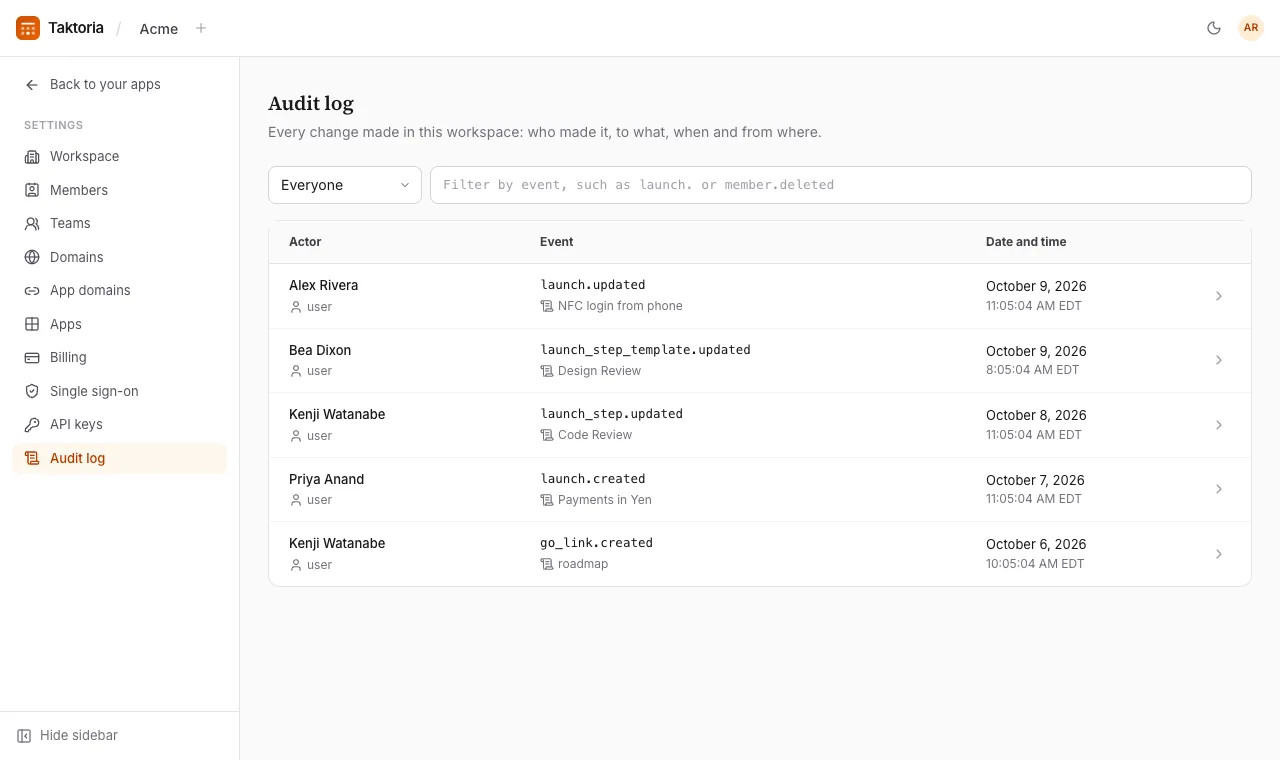
Settings → Audit log lists every change made in the workspace, newest first: who made it (a person, or an API key), what they changed, when, and from where. Select an event to see the fields that changed, from what to what, and the address and browser it came from.
Filter by person, or by event: launch. for everything done to launches, member.deleted for people removed. Secrets such as API keys are never written to it. Only admins can see it, in the app and through the API (auditLogs:read).