OKR Hub
Set objectives, share out the key results, check in as they move, and grade the whole year on one scorecard.
Objectives, key results and grades
An objective is what you are trying to achieve, in a sentence: qualitative and ambitious. It belongs to one person, one team or nobody (it then shows No owner), runs for a quarter or for the whole fiscal year, and has a weight.
Each objective has key results: the measurable outcomes that say whether it happened. A key result has its own weight, a priority (P0, P1, P2 or P3) and its own owners, any number of people and teams, who need not be the objective's.
Key results are graded from 0.0 to 1.0:
- 0.7 and up is delivered: a success for an ambitious goal.
- 0.4 to 0.7 is progress: something moved, but short of the target.
- Under 0.4 is missed: little real progress.
An objective's grade is its key results' grades averaged by weight, and every average above that (a team, a period) averages objectives by their weight. A priority's average takes each objective on its key results of that priority alone, still weighted as the objective. A key result that has not been graded yet is left out rather than counted as zero.
Quarters follow your workspace's fiscal year, which an admin sets in Settings → Workspace → Fiscal year.
Finding your way around
OKR Hub opens on the Scorecard.
The sidebar has two groups. View:
- Scorecard: the fiscal year as a spreadsheet.
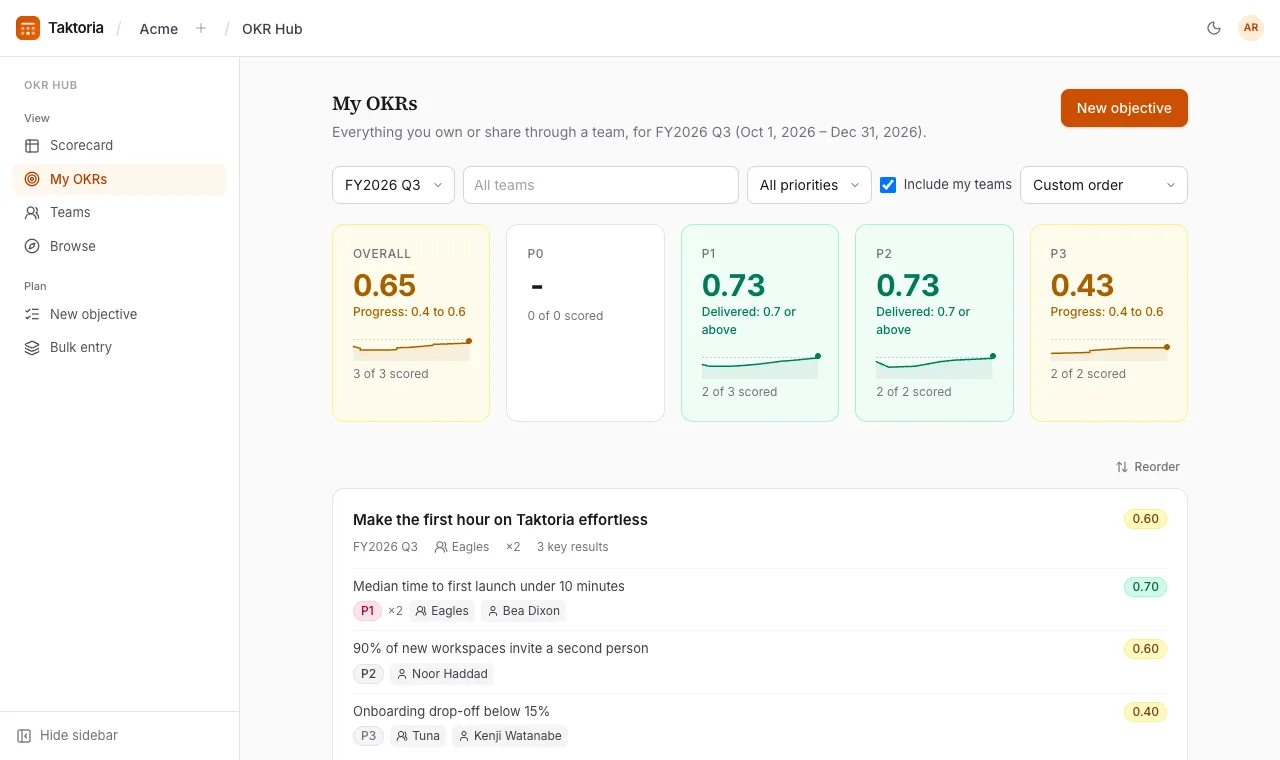
- My OKRs: what you and your teams own, what you created with no owner, and what you or your teams hold a key result of, for the current quarter, with the year's annual objectives under it. Untick Include my teams to see only what is yours in person.
- Teams: every team's score for a period. Search by name, sort by score, or show only teams that have one.
- Browse: every objective you can see, across the workspace.
Plan:
- New objective: write one objective and its key results.
- Bulk entry: paste a quarter's worth in one go.
On My OKRs and Browse, the bar at the top filters by period, teams and priority (an objective with a key result of that priority), and sorts by score. In Custom order, which is the workspace's own and the same on every page, move an objective you can edit by dragging its handle, or with the arrows beside it. A team's page keeps the same order. The cards above the list show the overall grade and each priority's, with a line of how it moved through the period. To move objectives, first select Reorder above the list, then Done when the order is right.
A team's page shows the objectives the team owns and those it holds a key result of. On every list, each objective's card shows its key results with their scores. On an objective the team only holds a key result of, it shows just the team's key results, scored from those; My OKRs does the same with yours on somebody else's objective.
A team that holds other teams shows theirs too, on its page and on Teams: what they own and the key results they hold, and their people among its members, each counted once. At the top of a team's page are the teams inside it, each a link to its own page, and then the people on it directly.
Writing an objective
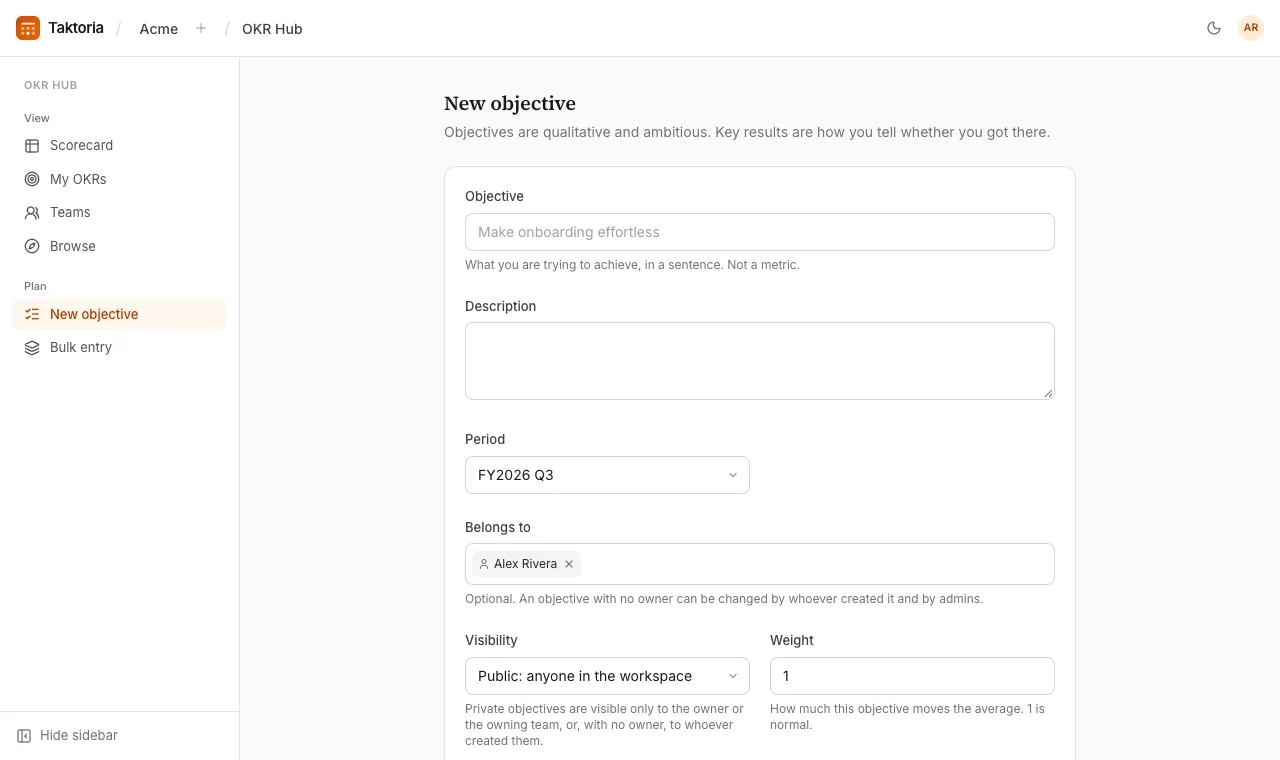
- Open New objective.
- Write the objective itself, and a description if it helps.
- Pick the Period (a quarter, or the fiscal year). The list offers the current fiscal year and any others an admin has switched on under Fiscal years in OKR Hub in workspace settings.
- Under Belongs to, pick the person or team it belongs to, or leave it empty for an objective with no owner.
- Choose Visibility: public objectives are visible to everyone in the workspace; private ones to their owner, the owning team (or, with no owner, whoever created it) and the key results' owners.
- Add the key results. Give each a weight (1 is normal; 2 counts twice as much), a priority, and its owners.
- Select Create objective.
Three to five key results is the usual range.
Drafts
An objective or a key result can be a draft: still being worked out, not yet agreed. It is a label, not a lock. A draft is seen by whoever could see it anyway, and it is scored, rolled up and checked in on like any other.
- Writing an objective, select Save as draft. To make only some of its key results drafts, tick Draft on those.
- Adding a key result to an objective, select Add as draft. While editing, a key result's Draft box makes it a draft or, cleared, publishes it.
- In Bulk entry, tick Import as drafts for every objective, or tag any line
[draft].
A draft carries a Draft badge. Once it is agreed, whoever may edit the objective selects Publish: at the top of the objective for the objective, beside the key result for a key result.
Entering a quarter in bulk
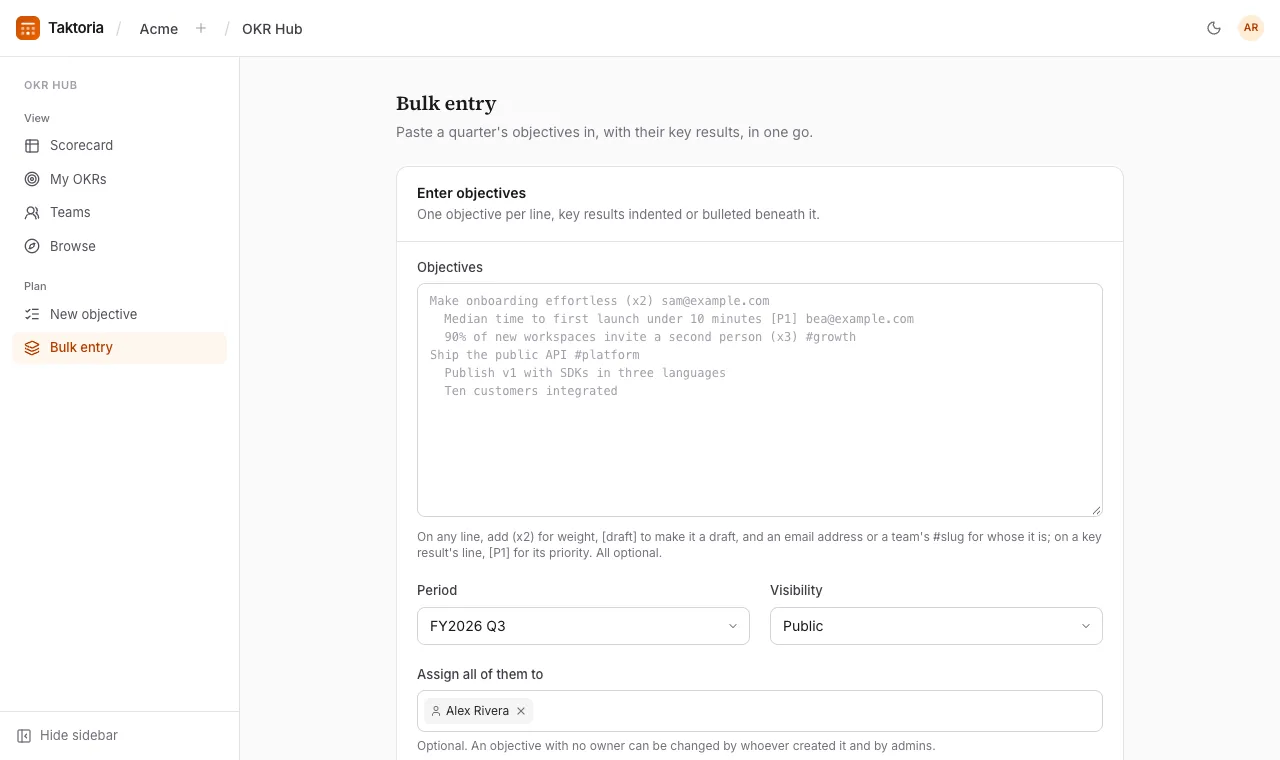
Bulk entry takes plain text: one objective per line, with its key results indented or bulleted underneath. Add [P1] to a key result's line for its priority, and (x2) to any line for its weight; both are optional.
Make onboarding effortless (x2) sam@example.com
  Median time to first launch under 10 minutes [P1] bea@example.com
  90% of new workspaces invite a second person (x3) #growth
These tags work on key results as well as objectives. An email address says whose a line is, and so does a team's slug after a #, as in #design: an objective's one owner, a person or a team, in place of the one picked for them all, or the people and teams on a key result, as many as you list. An address or slug the workspace does not have stops the import until it is fixed.
The preview underneath shows exactly what will be created, and which lines cannot be used, before anything is saved. Pick the period, the visibility and who they all belong to (leave Assign all of them to empty for no owner), then import.
Checking in
A check-in records where a key result stands: a grade from 0.0 to 1.0 and a note on why it moved. The note is the part worth reading three months later.
- Open the objective.
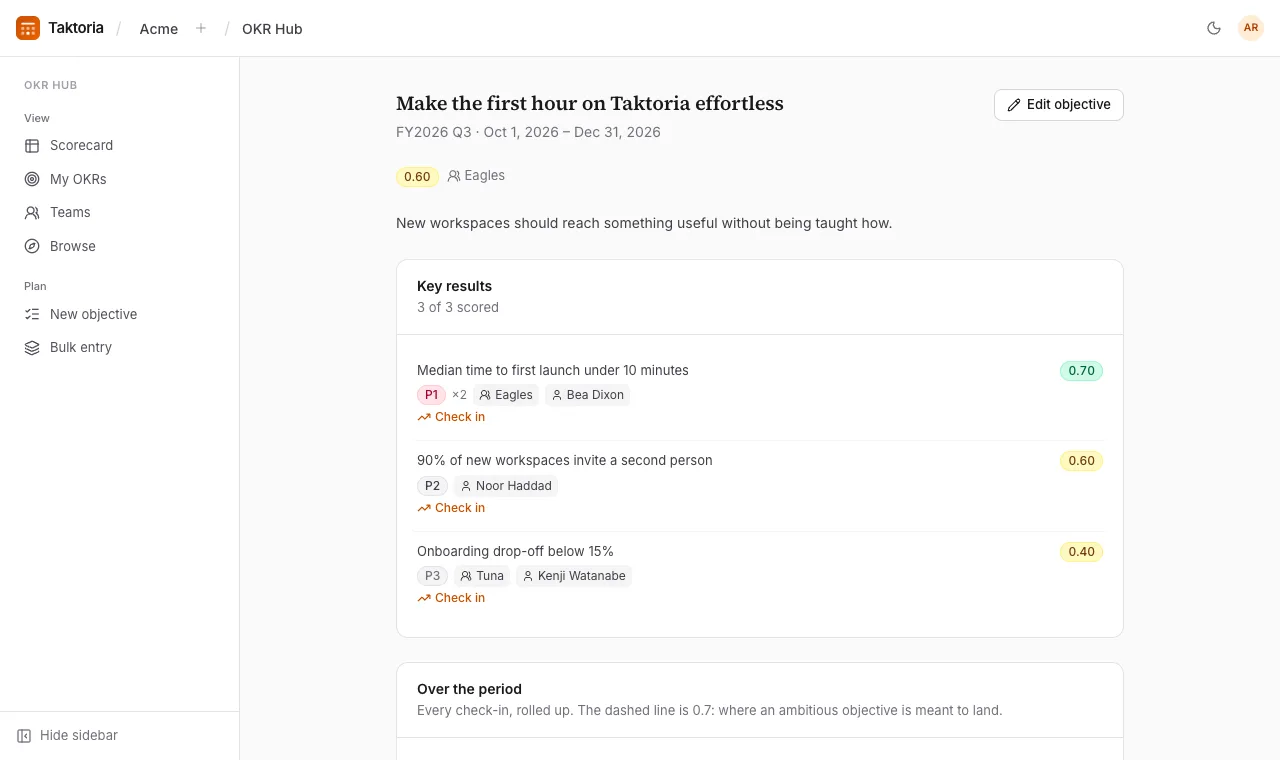
- Under the key result, select Check in.
- Enter the grade and a note. The date and time default to now; change them if you are writing it up after the meeting. A check-in can be recorded late, but not in the future.
- Save.
The key result's current score is its latest check-in, unless the scorecard holds a newer grade for it; a Final grade set there stays its score. A check-in recorded late goes into the history where it belongs without changing today's score. Every check-in appears in the objective's history and in the line of how it moved over the period.
A check-in can also be the key result's mid-quarter or final score on the scorecard: pick it in the list beside the date, which starts on Just a check-in. It is then set as that grade, as if typed into the scorecard's cell.
Reading and editing an objective
An objective opens to read: its key results with their owners and scores, the line of how it moved over the period, and every check-in.
If you may edit it, select Edit objective. The objective's own fields come first, then one editor per key result (title, weight, priority and owners, and a delete button), then a row to add another. Select Done to go back to reading.
Deleting a key result deletes its check-ins and grades with it.
While editing, move a key result the same way: drag its handle, or use the arrows beside it. To move key results, first select Reorder above them, then Done when the order is right.
A form with changes you have not saved says Unsaved changes beside its button. Leaving the page then asks first, so nothing is lost by accident: choose Keep editing to go back and save, or Leave without saving.
The scorecard
The scorecard shows every objective of a fiscal year and how it scored. The year is read at the end of each quarter; each quarter halfway through (Mid) and at the end (Final). Averages are weighted, overall and by key result priority. The averages lead the table; select Average to show each priority's.
- Filter by year, teams, priority and period. All shows every period; pick one or more to narrow it. Untick Mid-quarter scores to hide the mid-quarter columns.
- Select Show key results to open each objective onto its key results.
- Hover over any score to see where it came from (a check-in, or a grade set on the scorecard), the check-in's note, who changed it and when, and the line of how it moved over the period.
- Full screen puts the filters and the grid on the whole screen, for a grading meeting.
A key result's grade at each point is the latest check-in by then, unless somebody set one on the scorecard.
With teams or a priority picked, each objective shows only those teams' or that priority's key results, and its scores are worked out from them alone. Each objective is a line across the whole grid with its scores under it, and one carried through the year (the same title in the year and its quarters) reads along one row. Each period's key results sit beside that period's scores, with their priority, their weight when it is not 1, and their owners. A score's details open once the pointer has rested on it for a second, and a title cut short shows in full on hover.
Until a key result has a final score, its Final cell shows its latest check-in with an hourglass, as in progress rather than final; an objective's Final and the averages count it too, and carry the hourglass.
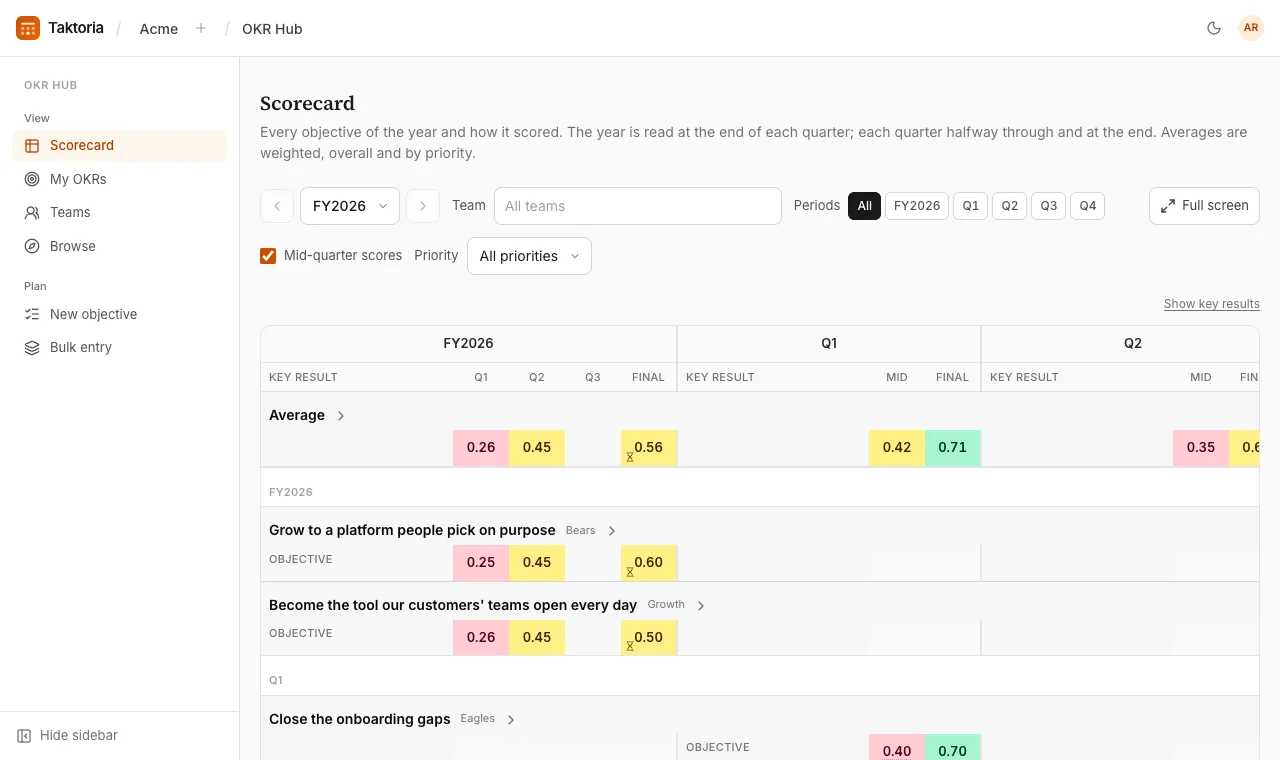
Grading and comments on the scorecard
If you may grade a key result, you can type a grade straight into its cell on the scorecard. That grade wins over the check-ins and is shown underlined; clear it to go back to the check-ins. Every change is recorded: who made it, from what, to what, and when.
Hovering a key result's score also lets you add a comment: what the grade means, or what happened. Comments support Markdown, so [text](https://…) and plain web addresses become links. A score with a comment is marked with a small speech-bubble badge.
A grade set here is also the key result's score everywhere else in OKR Hub, until a newer check-in; a Final grade stays its score.
Who can do what
- Edit an objective and its key results (fields, owners, adding and deleting key results): the objective's owner, the members of the team it belongs to, and workspace admins. An objective with no owner is edited by whoever created it, and by admins.
- Record progress (check-ins, scorecard grades and comments): all of those, plus a key result's own owners, directly or through one of their teams.
- See an objective: everyone in the workspace for a public one; for a private one, its owner, its team (or, with no owner, whoever created it) and its key results' owners.